
Permits and worker compliance, joined up: numbered permits, a live permit list in DS Site, and every worker's licences in one place
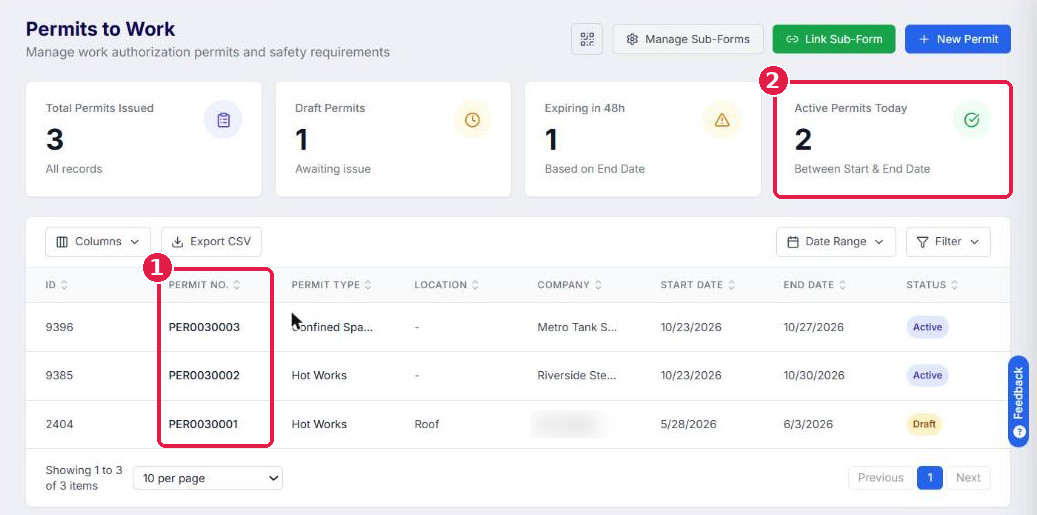
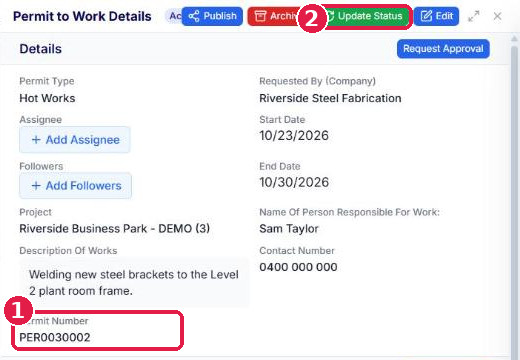
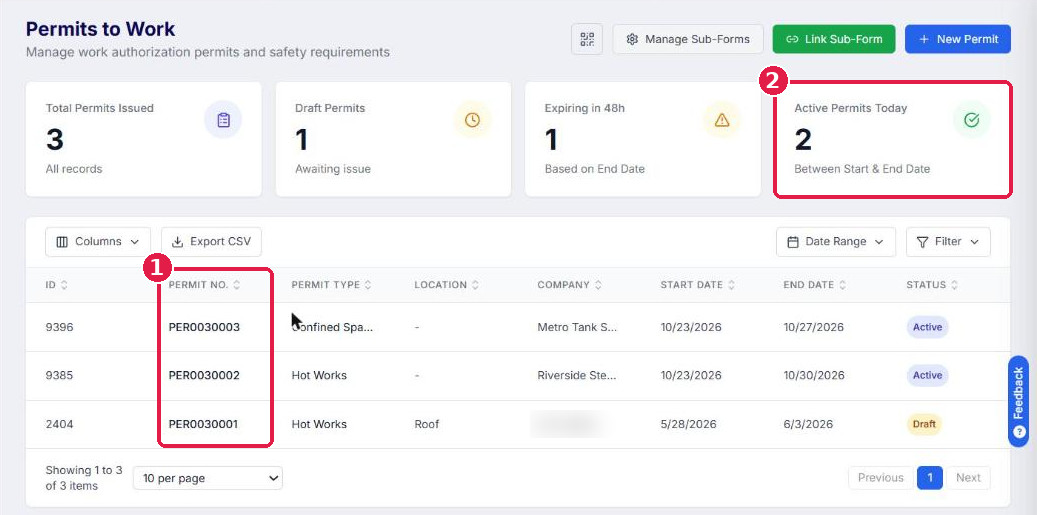
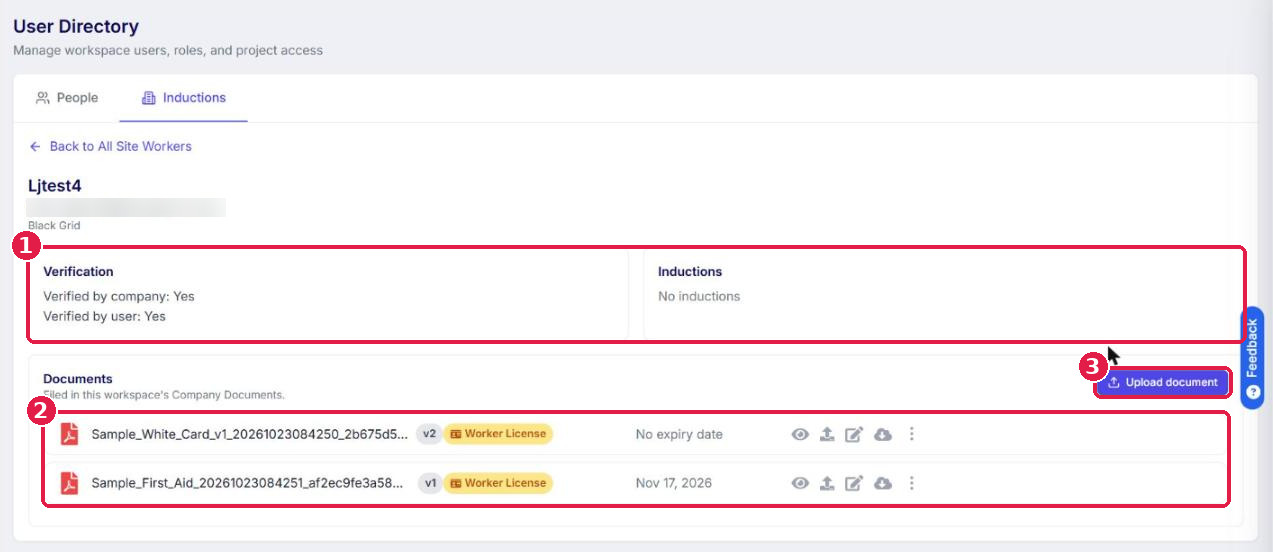
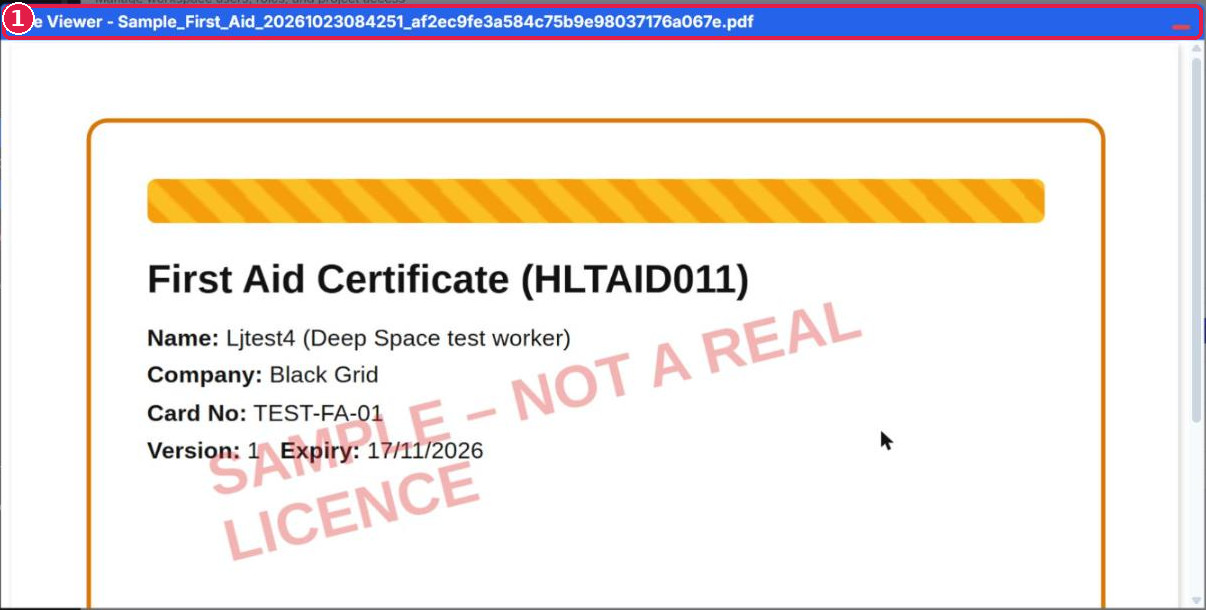
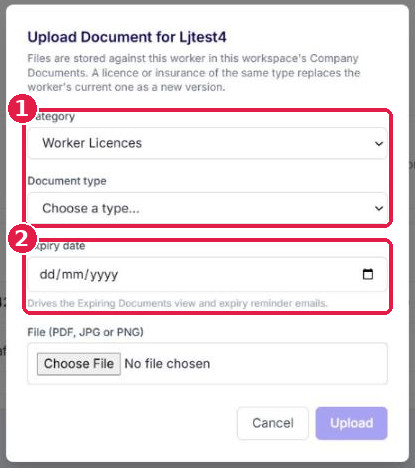
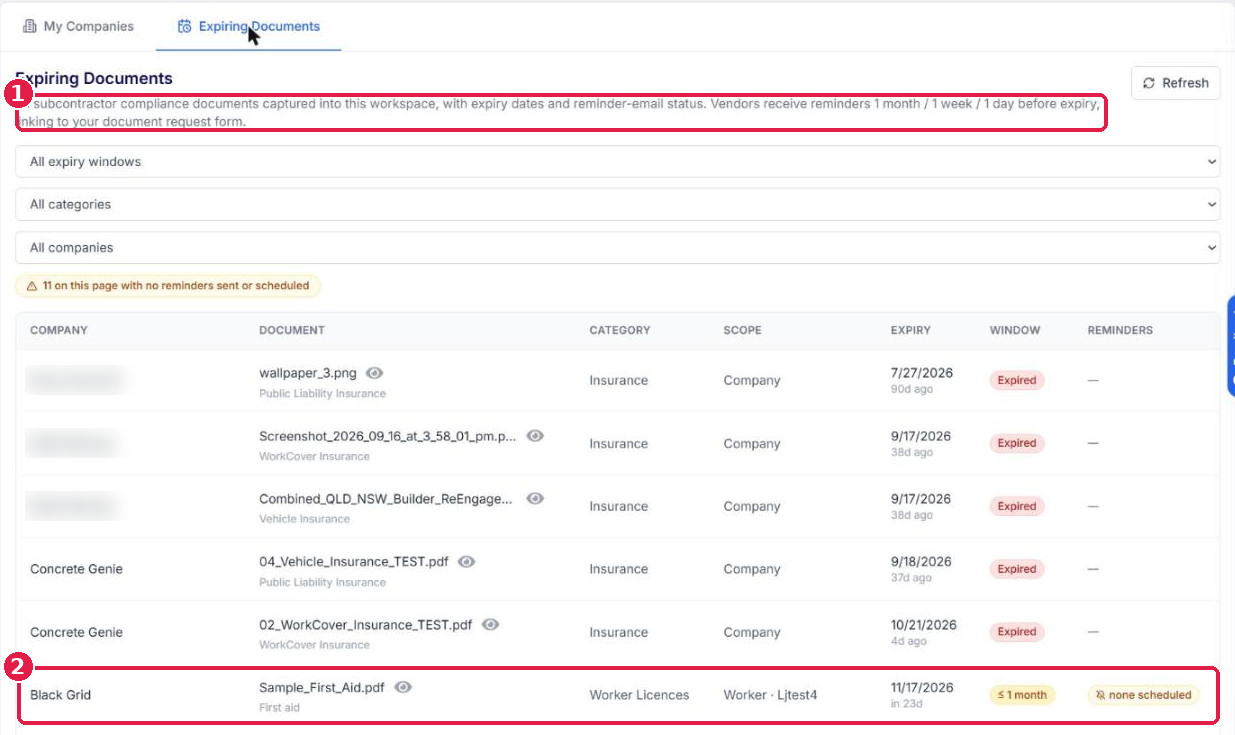
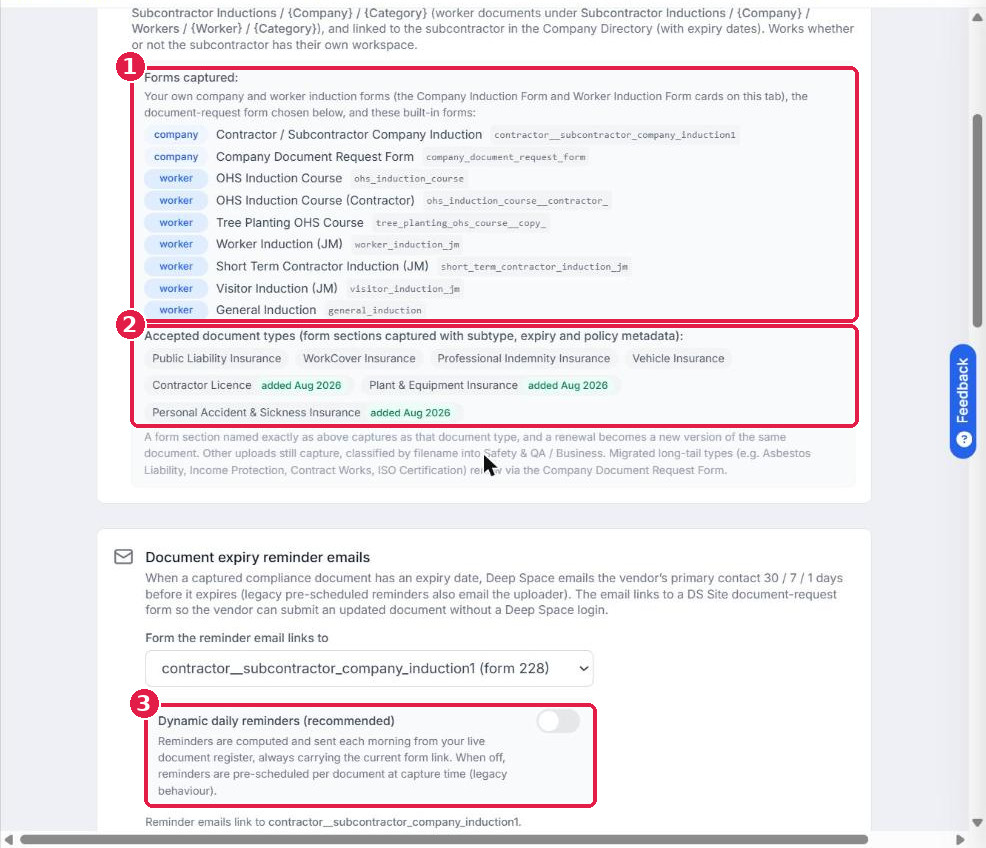
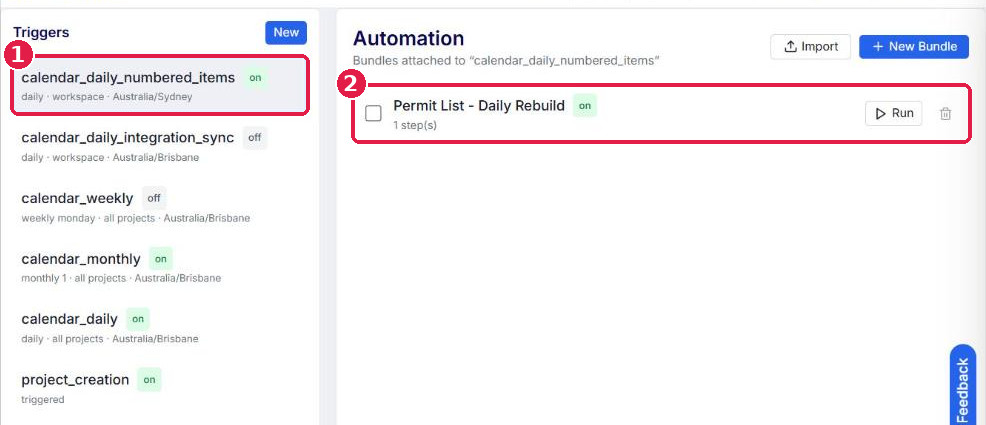
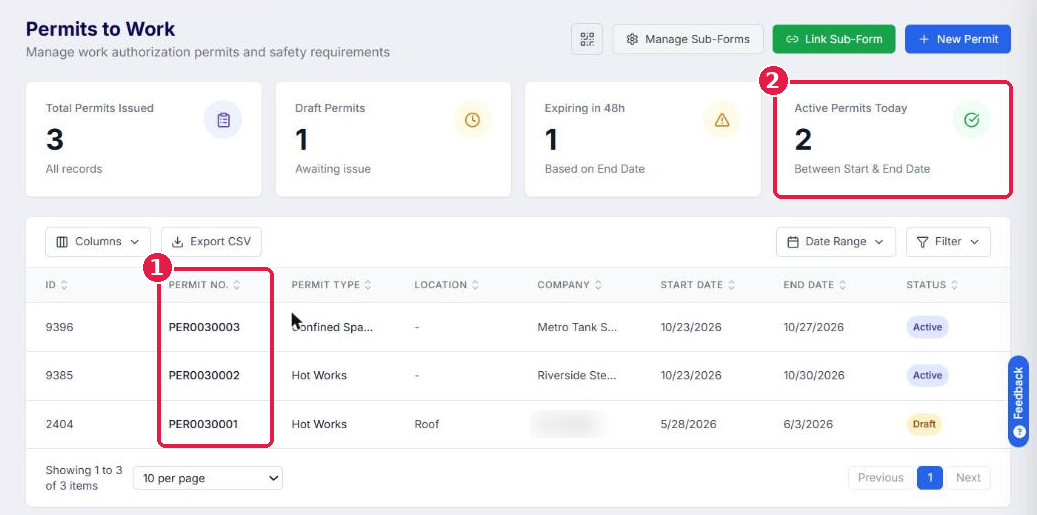
A hot work permit is only as good as the paperwork that hangs off it: the fire watch after the work, the close-out at the end of the day, and the licence of the person holding the torch. Until now those lived apart. Permits had no number, so two hot work permits for the same subcontractor on the same level looked identical. A fire watch check was its own form with nothing tying it back to the permit it covered. And a worker's tickets sat under their employer's Compliance tab, not against the worker. This update ties it together. Every permit now carries its own number. Every DS Site form can pick from a live list of the permits active today. Every worker has one page in the Deep Space web app holding every licence, ticket and induction with its expiry date. And any compliance form you build can file its attachments into Company Documents, without a request to our team. Features Every Permit to Work has its own number, and DS Site knows which permits are live User Story As a Health and Safety Manager with dozens of hot work permits open on one project, I need every fire watch check and close-out tied to the exact permit it covers, so an auditor can follow the trail without me matching paperwork by hand. Before Permits had no number. Two permits of the same type, for the same company, on the same project were impossible to tell apart in a list. A fire watch check, close-out or inspection was a separate form with no reliable link to its permit. Working out which permits were live today meant opening each one and reading its dates. After Deep Space numbers every permit within seconds of it being captured in DS Site. The format is PER, then the project number (3 digits), then a running sequence for that project. PER0030002 is the second permit on project 3. Each project keeps its own sequence, so project 18 starts at PER0180001. The number shows in three places: in a new Permit Number section on the permit in DS Site (it appears once the number is allocated, never while the permit is being filled in); on the permit's details in the Deep Space web app; in a new Permit No. column on HSEQ > Risk & Controls > Permits to Work, where you can sort by it. Behind the scenes, Deep Space keeps a live list of every permit that is Active today and publishes it to DS Site. Any DS Site form, such as a Fire Watch Check, a close-out, an inspection or a sign-on, can ask "Which permit?" and offer only the permits that are live right now. Each option reads like PER0030002 -- Hot Works -- Riverside Business Park -- Example Steel Fabrication: the number, the permit type, the project and the requesting company. The list refreshes itself every night, so a permit joins on its start date and drops off after its end date without anyone touching it. Impact Every fire watch check and close-out now names one specific permit. Site teams stop reconciling forms at the end of the week, and an auditor can trace any check back to its permit, and the permit back to the company that requested it, in one step. (1) The new Permit No. column in the Permits to Work register. (2) Active Permits Today, counted between each permit's start and end dates. (1) The Permit Number on the permit's details. (2) Update Status sets the permit to Active, which puts it on the live list. Worker Details: every licence and ticket, against the worker User Story As a site manager checking a subcontractor's crew before they start, I need to open a worker and see every licence, its type and its expiry date in one place, and add one myself when a ticket arrives by email. Before My Workers had moved to Directory > User Directory > Inductions, but View Details and Go To Worker still pointed at the old Company Management pages and sent you back to the workspace picker. Licences captured from induction forms showed only under the employer's Compliance > Workers tab, never on the worker. Uploading a ticket for a worker meant leaving the Deep Space web app. After Worker Details now opens right inside Directory > User Directory > Inductions: My Workers (your own staff): open a worker's ⋮ menu and choose View Details. All Site Workers (everyone who can attend your sites, including subcontractors' workers): open the ⋮ menu and choose Go To Worker. One page shows the worker's verification (by company and by user), each induction status with a link to the submission, the worker details your company records, and a single Documents list with each document's type, expiry date and version. Click any document to view the PDF or image inline, or download it. Upload document puts a ticket straight onto the worker. Choose a category (Worker Licences, Insurance Docs, Business Docs or Safety Docs), a document type (White Card, First Aid, Working at Heights, Confined Space, High Risk Work Licence, Driver Licence, Working with Children Check, Police Check, Site Induction, or Other to name your own), the expiry date and the file (PDF, JPG or PNG). Upload a type the worker already holds, such as a renewed White Card, and it becomes the next version (v2, v3) with the earlier one kept in the document's history. A First Aid certificate never replaces a White Card, because each type stays its own document. Every worker document is filed in your own Company Documents, and the old Company Management worker pages now redirect to Worker Details. Impact One place to answer "is this person licensed to be on site today?". Admins can load tickets for workers who never open DS Site, renewals keep their history, and every document with an expiry date feeds Expiring Documents, the reminder emails and the company's compliance status. (1) Verification and induction status at a glance. (2) Every document filed for the worker, with type, expiry and version. (3) Upload document. (1) Licences open inline, without leaving the page. (1) Choose the category and document type. (2) The expiry date drives Expiring Documents and the reminder emails. (1) Reminders go out a month, a week and a day before expiry. (2) Worker licences sit alongside company documents in Company Directory, Expiring Documents. Induction Settings shows exactly which forms file into Company Documents User Story As an HSEQ admin, I need to know which of our DS Site forms file their attachments into Company Documents, so nothing a subcontractor sends us goes unfiled. Before Which forms were captured was set behind the scenes and invisible to you. A form outside that list could go months without its attachments being filed, and nobody would know. After Company Settings > Induction Settings now spells it out. Every form you configure on this tab as a company or worker induction form is captured, along with your document-request form and the built-in forms listed under Forms captured. The tab also lists the document types Deep Space recognises by section name (Public Liability, WorkCover, Professional Indemnity, Vehicle, Plant & Equipment, and Personal Accident & Sickness Insurance, plus Contractor Licence), explains that a renewal becomes a new version of the same document, and shows the folder structure in Company Documents. To capture a new form, add it with Add Configuration on the Company Induction Form or Worker Induction Form card. Impact You can see at a glance what's being filed, and a new compliance form starts filing the day you configure it. (1) Every form whose attachments are filed into Company Documents. (2) The document types recognised by section name. (3) Dynamic daily reminders, recommended on. Known limitations Permits. The live list only counts a permit when its status is Active and today falls between its start and end dates. Permits at Draft, Issued, In Review or Suspended, or missing either date, are not listed, so set permits to Active with Update Status. Changes made in the Deep Space web app reach the list within about a minute. Status changes made directly in DS Site can wait until the nightly refresh. Permits raised before this update have been numbered in the order they were created, and their number shows in the register and on the permit's details, but not on the original DS Site submission, which stays on the older version of the form. Writing the number onto a new permit counts as an edit, so if your permit form sends notifications on update, they fire once for each new permit. A permit keeps the project it was numbered under, even if the project is edited later. The permit picker isn't filtered by project yet, so each option names its project. Worker Details. You see the documents your workspace holds: what was given to you through your forms, your uploads and your subcontractor portal. A document a subcontractor gave another builder isn't visible to you. Uploading needs the View and Manage Company Directory permission. Documents without an expiry date are filed and visible, but can't be tracked or reminded. Document capture. Capture starts with the next submission after a form is configured. Earlier submissions aren't filed automatically. Uploads in a section not named as a recognised document type are still filed, classified by file name into Safety & QA or Business. How it fits together Permit raised in DS Site > numbered within seconds > set to Active in the Deep Space web app > joins the live permit list on its start date > picked on the fire watch check, close-out or inspection > drops off the list after its end date, or as soon as it's suspended, closed or archived. Alongside it, worker tickets arrive through your induction and document-request forms, a manual upload, or the subcontractor portal > filed in Company Documents against the worker > shown on Worker Details and the company's Compliance tab > tracked in Expiring Documents, reminder emails and the company's compliance status, which warns you when you commit money to a non-compliant company. How to run it, step by step Admin, once per workspace In Admin > Automation, check the Permit List - Daily Rebuild bundle on the calendardailynumbered_items trigger is switched on. It's created with your first numbered permit and keeps the list current each night. (1) The daily trigger for numbered items. (2) The Permit List - Daily Rebuild bundle. In the DS Site form builder, open each form that should reference a permit (for example your Fire Watch Check). Add a lookup field called Permit, choose Value lookup, bind it to the permitlist resource, display permitlabel, and auto-fill a hidden permit_number field. Publish the form. Your Deep Space team can set this up with you. Choose which forms count as worker inductions with the gear on Directory > User Directory > Inductions. In Admin > Company Settings > Induction Settings, add any other compliance form with Add Configuration, choose the form your reminder emails link to, and turn on Dynamic daily reminders. Permit issuer Raise the permit in DS Site as usual, with a start date and an end date. Reopen it after a few seconds. The Permit Number section now shows its number. In the Deep Space web app, open HSEQ > Risk & Controls > Permits to Work and choose the project at the top. Find the permit by its Permit No., open it and use Update Status to set it to Active. It joins the live list within about a minute. When the work is done, suspend, close or archive the permit. It leaves the list within about a minute. Worker on site At the end of the shift, open the Fire Watch Check in DS Site. Tap Permit and pick your permit. Only today's live permits appear. Complete the check and submit. The check now carries the permit number. Health and Safety Manager or site manager Open Directory > User Directory > Inductions. Choose View Details (My Workers) or Go To Worker (All Site Workers). Check verification and induction status at the top, then the Documents list. Click any licence to view it. Ticket arrived by email? Click Upload document, choose the category and type, enter the expiry date and attach the file. A renewal of a type the worker already holds becomes the next version. Keep an eye on Company Directory > Expiring Documents for anything coming due. Getting it set up Permit numbering is on in every workspace with a Permits to Work form, and existing permits are already numbered. There is nothing to switch on. Linking a form to the live permit list is a one-off change in the DS Site form builder, which your Deep Space team can make with you. Worker Details is live for everyone with access to the Inductions tab. The Permits to Work Guide and the Worker Document Compliance Guide cover each step. Frequently asked questions What does a Permit Number look like? PER, then the project number as 3 digits, then a 4-digit sequence for that project. PER0180001 is the first permit on project 18. Do numbers ever change or get reused? No. A permit keeps its number for life, whatever its status. Numbers are never reissued, even after a permit is archived. Were our existing permits numbered? Yes, in the order they were created, project by project. Their number shows in the register and on the permit's details, but not on the original DS Site submission. Why isn't my permit in the picker? One of these: its status isn't Active, today is outside its start and end dates, it's missing a date, or its status was changed in DS Site and the list is waiting for the nightly refresh. What does the picker show when nothing is live? A single "No active permits" option. Does the permit list show workers' personal details? No. Each entry carries the permit number, type, project, requesting company, location, dates and status. No names, phone numbers or emails. Can I move a numbered permit to another project? The permit keeps the project it was numbered under, and so do its number and its place in the list. Raise a new permit on the right project instead. Where are worker documents filed? In your Company Documents. A subcontractor's worker goes under Subcontractor Inductions > Company (ABN) > Workers > Worker > Category. Your own staff go under Staff > Worker > Category. A worker we can't match to exactly one company goes under Subcontractor Inductions > _Unmatched workers > email, so is lost. How do I renew a licence? Upload the renewed licence against the same document type, either with Upload document or the upload new version arrow on the existing document. It becomes v2 (then v3), with earlier versions kept in its history. A renewal submitted through your induction form joins the existing document on its own. Who gets the expiry reminders? With Dynamic daily reminders on, the company's main contact is emailed 30, 7 and 1 day before a document expires, with a link to your document-request form so they can send the renewal straight back. Reminders for a worker's documents go to their company's main contact. Each reminder is sent once. Can we see documents a subcontractor gave another builder? No. You hold your own copy of every document given to you, through your forms, your uploads and your portal. Why can't I see Upload document? You need the View and Manage Company Directory permission. If it was granted recently, sign out and back in. We just configured a new form. What about submissions made before that? They aren't filed automatically. Contact Customer Success and we'll bring them in. Have feedback or an idea? Share it through the feedback portal in the platform. We read every one.
How do you feel about this update?