
Visual drawing comparison: see exactly what changed
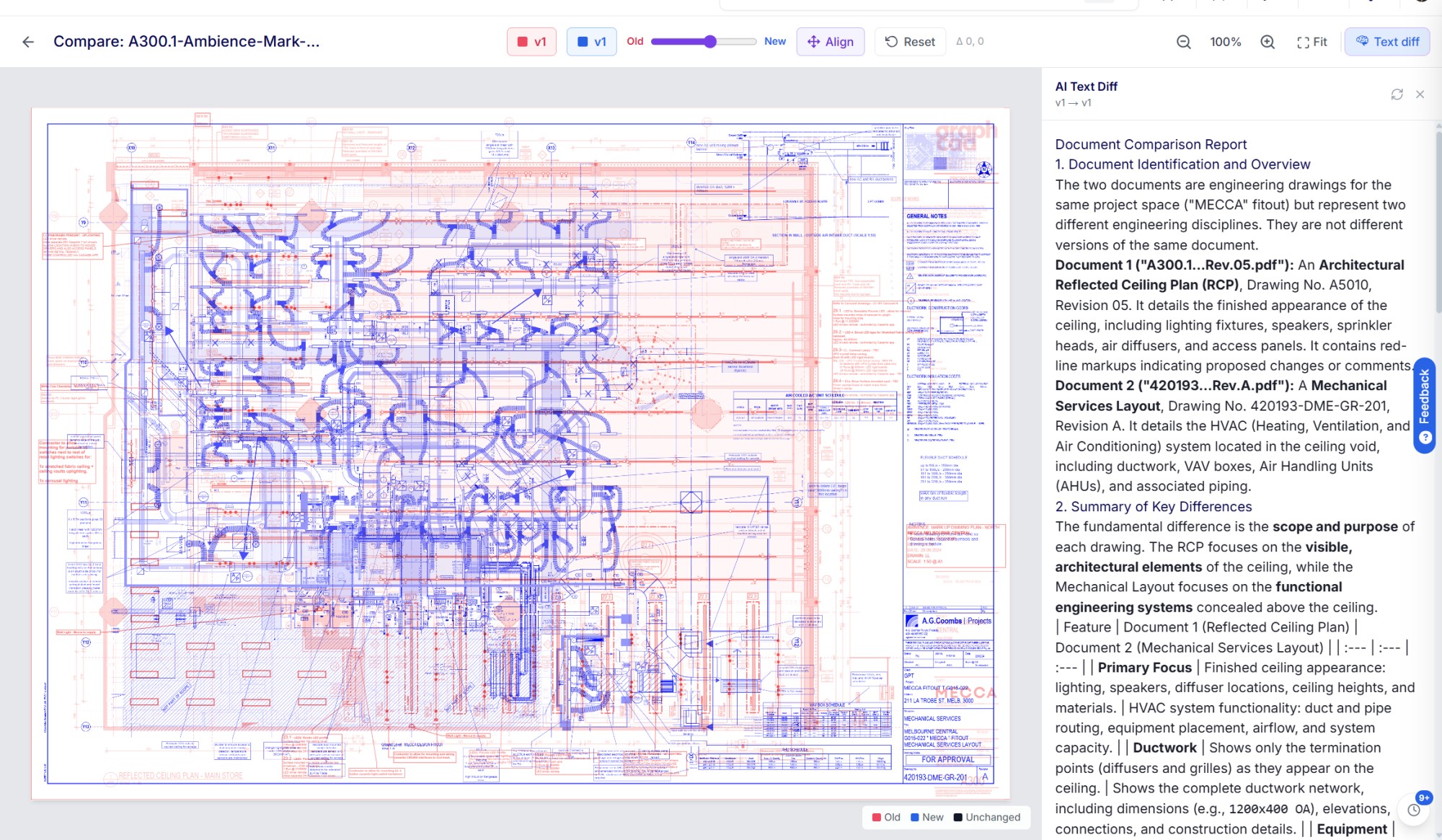
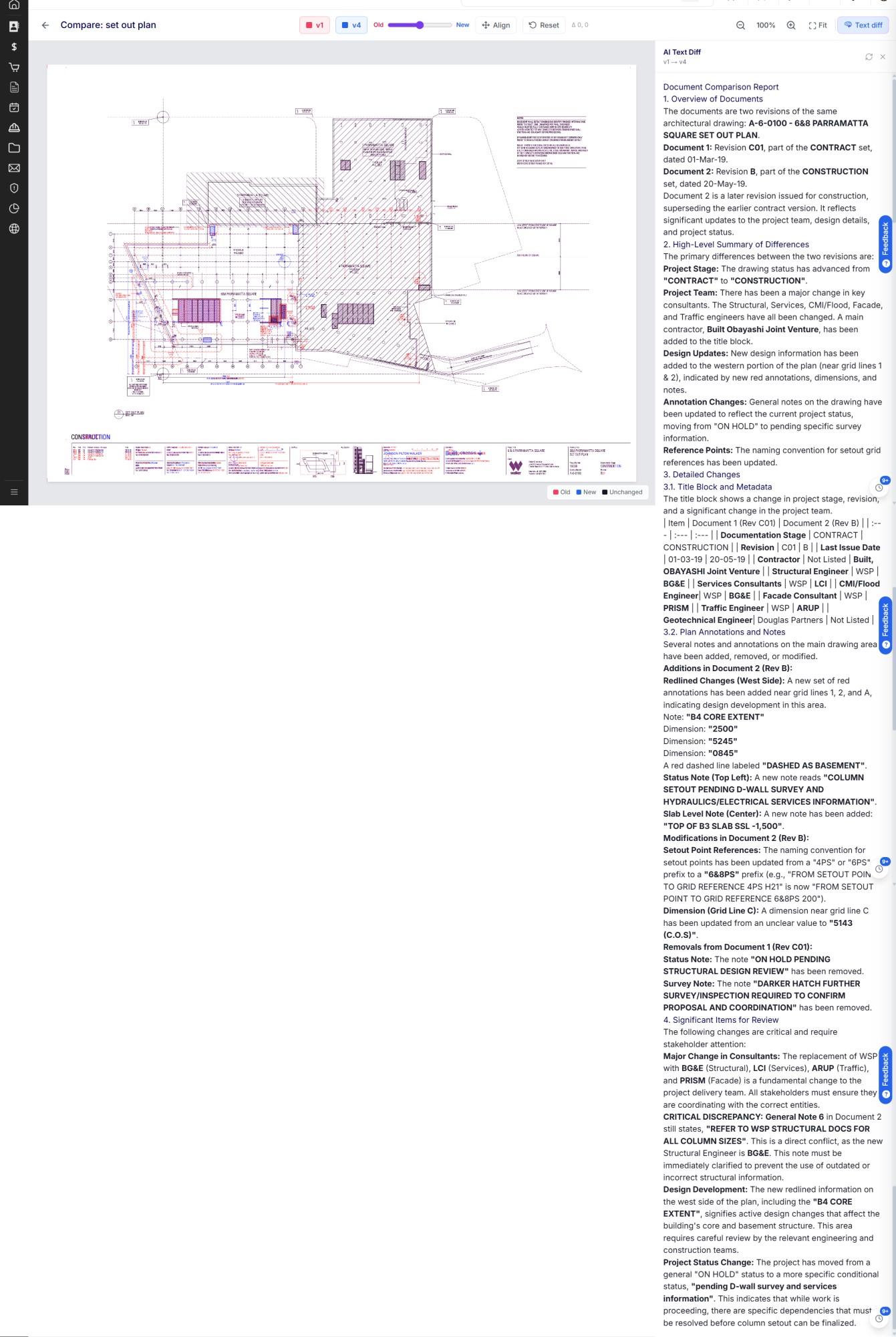
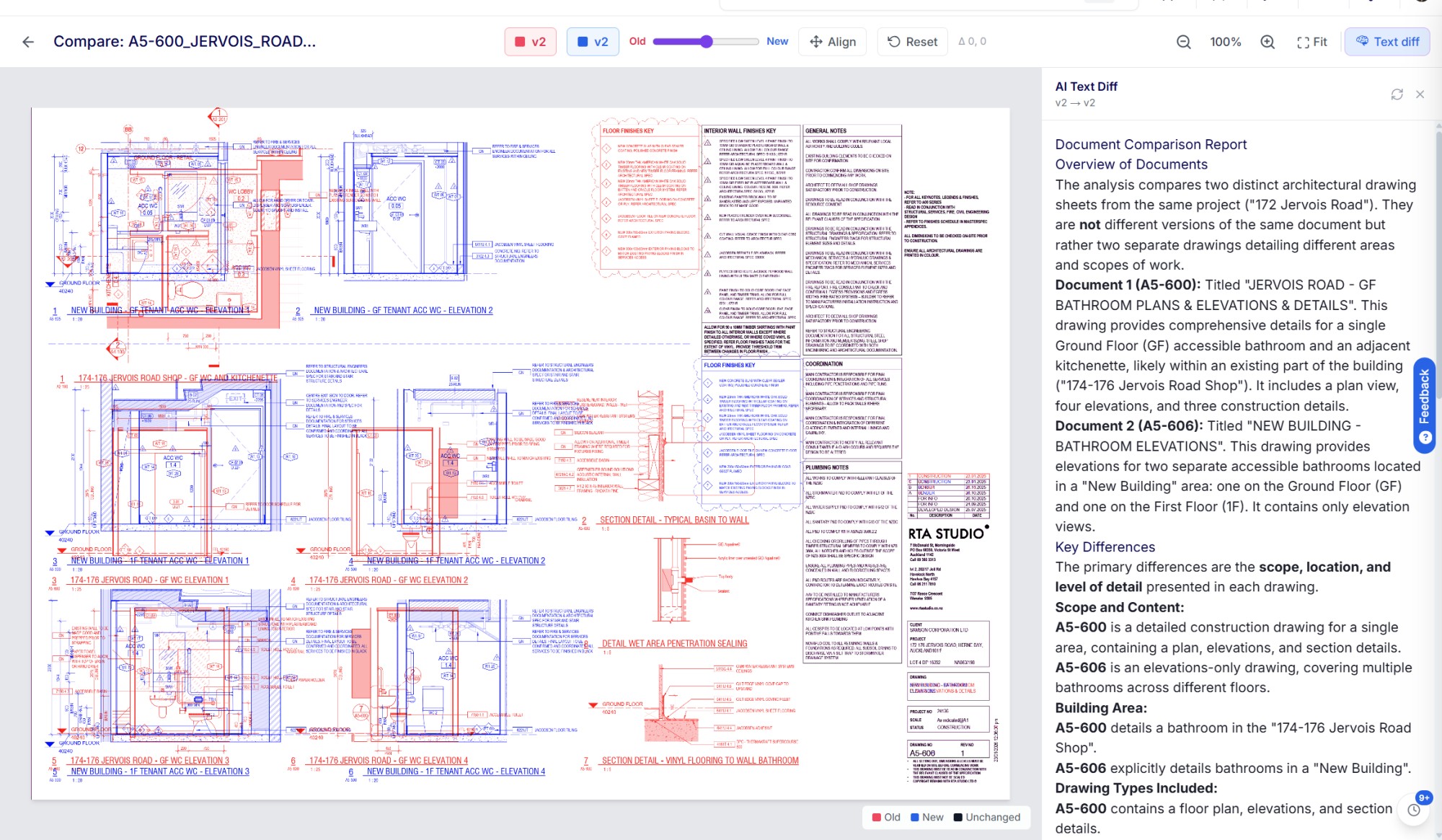
Two revisions of a drawing never tell you what changed. You have to go and find it. Until now that meant downloading both PDFs, lining them up in two windows, and tracing the difference by eye. Now you do it inside the platform: overlay the two revisions so the change lights up in colour, and read KAI's written breakdown right beside it. The picture and the explanation, on one screen. See it and read it, side by side This is the part that changes how a review feels. The visual overlay shows you where the change is. KAI's text difference tells you what it is and why it matters. They sit on the same screen, at the same time, so you are never flicking between a picture in one window and a paragraph in another, trying to hold both in your head. Spot the shift on the sheet, glance across, and KAI has already written it up. Why this matters On a live commercial job a single sheet can be reissued five or six times. Walls move, dimensions change, a detail gets added, and the cost of missing one of those changes lands on site, in an RFI, or in a variation. Comparing drawings by eye is slow and easy to get wrong, and the usual alternative is a separate markup product that sits outside where your documents actually live. Now the drawing, its full revision history, and the comparison all sit in one place, so a review that used to take two windows and ten minutes takes one screen and a glance. Overlay two revisions and watch the change light up Open Compare Versions on any PDF drawing, pick two versions, and select Visual Overlay. Both drawings render on top of each other using a colour shift you can read at a glance: the older drawing in red, the newer in blue, and anything that stayed the same reads through as black where the linework lines up. Fade between the two with the opacity slider, toggle each layer on or off, and use Align to register sheets that do not sit perfectly on top of one another. Pan and zoom work exactly as they do everywhere else. KAI reads the difference for you Open the Text diff panel and KAI writes a clear comparison report next to the drawing: what each document is, a summary of the key differences, and a feature-by-feature breakdown. It is sharp enough to tell you when two sheets are not versions of each other at all, so you never end up comparing two things that were never meant to line up. Compare any two files, not just versions of one Comparison is no longer limited to versions of the same drawing. Select any two files, choose a version of each, and compare them in the visual overlay or the KAI text diff. Lay an architectural plan over a services layout, or one set against another, and see exactly how they relate. The version picker now shows the revision, who uploaded it, the file size and date, with an eye icon to open any version before you commit to it. How to use it Open a PDF drawing and go to Compare Versions, or select two files and choose Compare. Pick the version you want on each side, then choose Visual Overlay for the colour comparison or AI Text Diff for KAI's written report. Use the opacity slider, layer toggles and Align to read the change on the sheet, and open the Text diff panel to see it explained in words, right there next to the drawing. What this replaces for builders Downloading two PDFs and comparing them by eye, or paying for a separate markup product just to overlay revisions and never getting the written read-out at all. Now the visual overlay and the text difference run together, next to the documents you are already managing. Visual overlay works with PDF drawings, and the KAI text comparison works across file types. Less hunting between sheets, and far more certainty about what changed. The overlay shows you where, KAI tells you what and why, side by side, on one screen. This update shipped because builders asked for it, and the next move is yours to shape, whether that is exporting a marked-up overlay or comparing whole drawing sets at once. Deep Space is built in Australia and New Zealand, for builders here, and your feedback decides what we build next. Tell us what you need on this page, or reach the team any time at deepspacegroup.ai.
How do you feel about this update?