
Form attachments auto-upload to CDE
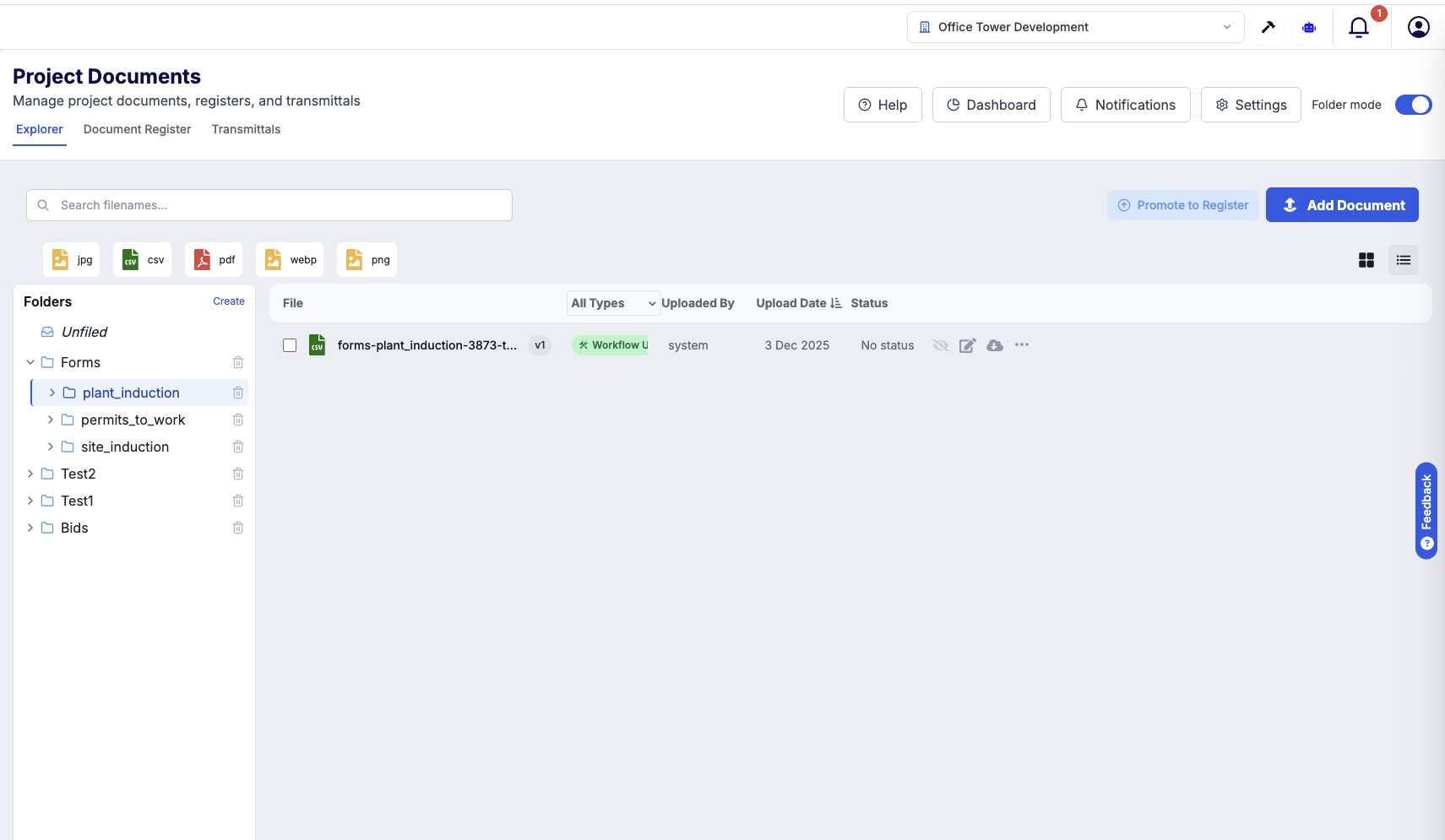
Form Attachments Auto-Upload to Document Management What's New When you submit forms with file attachments (photos, documents, PDFs), those files are now automatically saved to your project's Document Management system. No more manual downloading and re-uploading! The Problem We Solved Before this feature, when team members submitted forms with attachments: Files were stored separately from your project documents You had to manually download attachments and upload them again Attachments weren't linked to your projects Finding form attachments later was difficult Files weren't part of your document audit trail This created extra work and made it hard to keep everything organized. How It Works Now Simple 3-Step Process Submit Form 2. Automatic Processing 3. Ready in Documents with photos ───▶ (happens instantly) ───▶ organized in or files folders You don't need to do anything extra. Just submit your forms as usual, and attachments appear in your Document Management automatically. Key Benefits Save Time No more manual file transfers Attachments are available immediately after form submission Spend less time on admin work Stay Organized Files are automatically placed in the right folders Each attachment is linked to its source form Easy to find documents later Better Collaboration Team members can access attachments right away Everyone sees the same files in one place No more emailing files back and forth Complete Records All attachments become part of your project history Full audit trail for compliance Nothing gets lost or forgotten What Gets Uploaded The system automatically detects and uploads: | File Type | Examples | |-----------|----------| | Photos | Site photos, progress images, inspection photos | | Documents | PDFs, Word docs, spreadsheets | | Drawings | CAD exports, sketches, plans | | Other Files | Any attachment added to your forms | Where Files Are Stored Your attachments are organized automatically: Documents └── Forms └── [Form Name] ├── sitephoto001.jpg ├── inspection_report.pdf └── defect_image.png Folder structure: All form attachments go into a "Forms" folder Each form type has its own subfolder Files are named clearly so you can identify them Supported Forms This feature works with: Site Inspection Forms Safety Checklists Quality Assurance Forms Progress Reports Defect Reports Any Horizon workflow form with file upload fields Frequently Asked Questions Q: Do I need to change how I submit forms? A: No! Just submit forms as you normally do. The upload happens automatically in the background. Q: How quickly are files available? A: Files typically appear in Document Management within seconds of form submission. Q: What if I submit multiple photos? A: All photos are uploaded. Each file becomes a separate document in your project. Q: Can I still access attachments in the form system? A: Yes, attachments remain available in both places. Q: What happens if a file fails to upload? A: The system will automatically retry. If issues persist, our support team is notified. Q: Are the files linked to specific projects? A: Yes! Files are automatically associated with the project selected in the form. Q: Can I move files to different folders after upload? A: Yes, you can reorganize files in Document Management just like any other document. Q: Is there a file size limit? A: Files up to 500MB are supported per attachment. Use Cases Site Inspections Take photos during your inspection, attach them to the form, and they're instantly available in the project's document library for the whole team to review. Progress Documentation Capture progress photos and attach to weekly reports. All images are stored chronologically, creating a visual timeline of your project. Defect Reporting Document defects with photos, submit the defect form, and the evidence is immediately filed and linked to the project record. Safety Compliance Attach safety certificates, training records, or incident photos. Everything is stored securely with full traceability. Tips for Best Results Use Clear File Names Before attaching, rename files descriptively: Good: Level-3-concrete-pour-2024-12-01.jpg Not ideal: IMG_4532.jpg Select the Right Project Make sure you've selected the correct project in the form before submitting. Files are linked to whichever project is selected. Check Your Uploads After submitting, you can verify files appeared in Document Management under the Forms folder. Report Issues If attachments don't appear after a few minutes, contact support with the form name and submission time. Coming Soon We're working on more improvements: Thumbnail Previews - See image previews directly in the document list Batch Downloads - Download all form attachments at once Version History - Track when files were updated across form submissions Custom Folder Rules - Choose where different form types save their files Notifications - Get alerts when new attachments are uploaded Summary | Before | After | |--------|-------| | Manual download and re-upload | Automatic upload | | Files stored separately | Files in Document Management | | Hard to find attachments | Organized in folders | | No project linking | Linked to projects | | Extra admin work | Zero extra steps | Form attachments to Document Management: Submit once, available everywhere.
How do you feel about this update?