
Action Engine
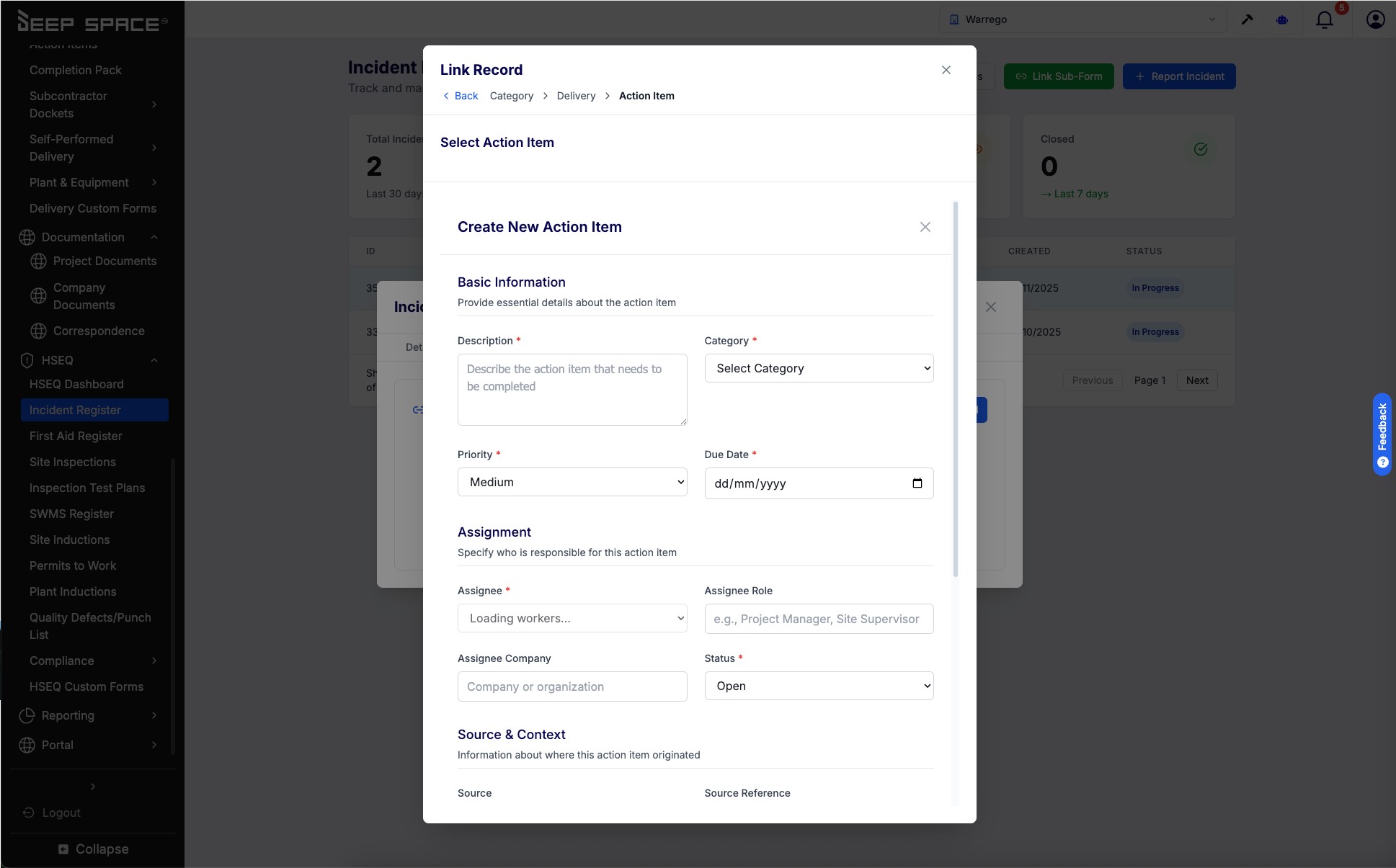
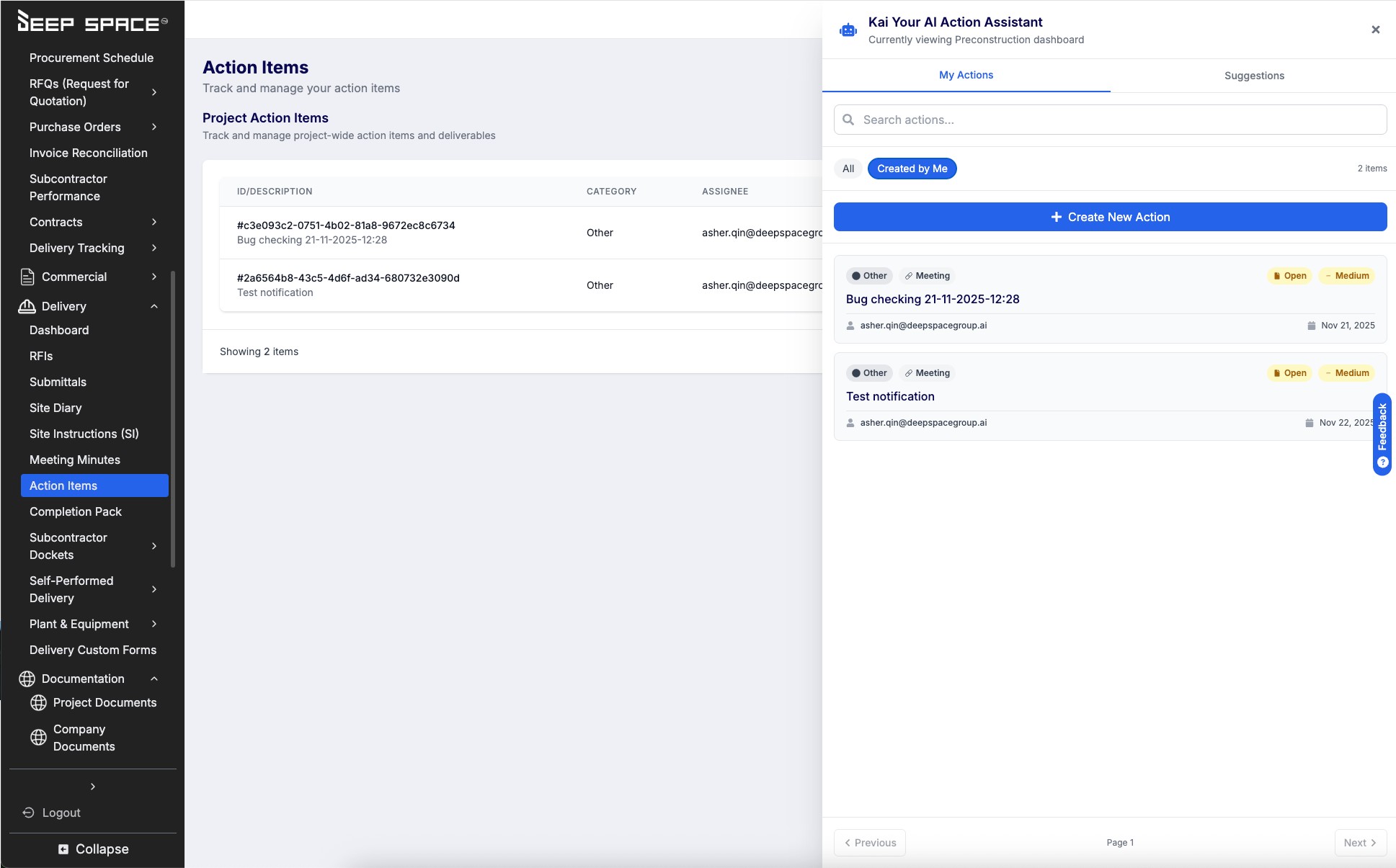
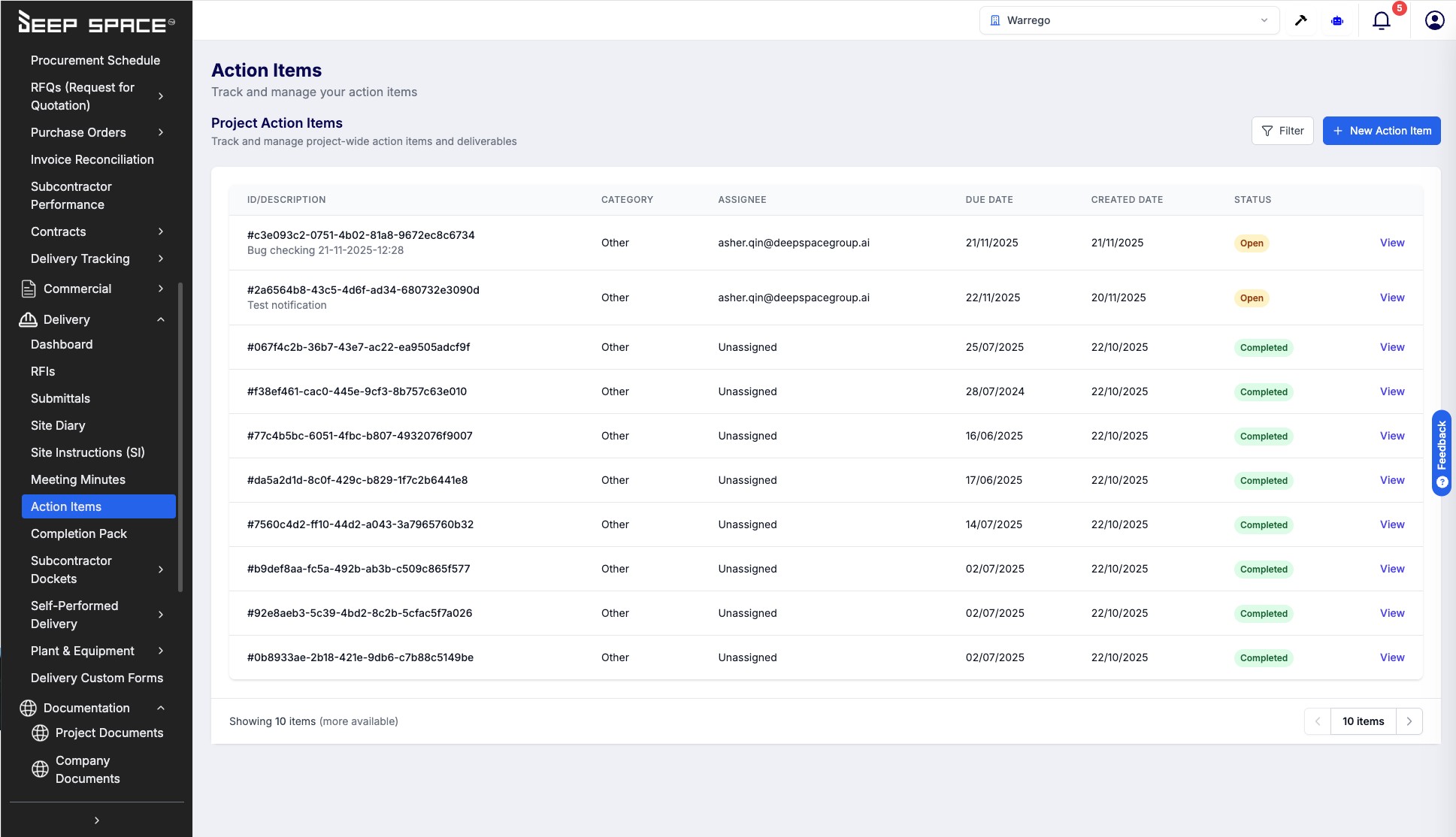
Action Engine with Linked Records Overview The Action Engine is Horizon's comprehensive task management system, providing three powerful ways to create and manage action items: through the Action Items Page for full control, the Actions Sidebar for quick access anywhere, and directly within Linked Records for instant context. This multi-access approach ensures you can capture actions whenever and wherever they arise, with automatic linking to maintain complete traceability. What Are Action Items? Action Items are trackable tasks capturing what needs to be done, who is responsible, when it's due, why it exists, how urgent it is (priority: High/Medium/Low), and current state (Open, In Progress, Completed, Overdue). Every action maintains a complete audit trail with automatic email notifications to assignees. Action Items Page - Full Control & Overview The Action Items Page is your central hub for managing all project actions with comprehensive filtering, searching, and bulk operations. Key Features Filtering & Views All Actions - See every action item in the project My Actions - View only items assigned to you Created by Me - See actions you initiated Filter by status, priority, category, or due date Search across descriptions, assignees, and details Action Item Cards Display Each card shows category badge, priority indicator, status badge, description, assignee info (name, role, company), due date with overdue warnings, source information, and location. Creating Actions Click "New Action Item" button Fill out form: Basic Information (description, category, priority, due date), Assignment (assignee, role, company, status), Source & Context (type, reference, title, location), Additional Details (notes, attachments) System automatically generates ID, records metadata, sends notification, and makes visible in views Managing Actions Click any action to open details modal Update status using "Change Status" buttons (Open → In Progress → Completed) View full details including timeline, attachments, and linked records tab Add notes and upload attachments Pagination Navigate large lists with Previous/Next buttons, 10 items per page, cursor-based pagination for fast performance. Actions Sidebar - Quick Access Anywhere The Actions Sidebar is a slide-out panel accessible from anywhere in Horizon, providing instant access to action items without leaving your current page. How to Use Opening the Sidebar Click the Actions icon in the main navigation (right side). It slides in from the right, overlaying your current view without disrupting your work. Interface Features Tabbed Views: My Actions tab for items assigned to you, Suggestions tab (AI-powered, coming soon) Filter Buttons: Toggle between "All" and "Created by Me" without leaving sidebar Action Cards: Compact display showing category, source, priority, status, description, assignee, and due date Click any card to open full details modal Creating Actions from Sidebar Click "Create New Action" button in sidebar Embedded creation form appears (same fields as main page) Fill out action details Key Advantage: Created in context of where you're working Can immediately link to current record Assignee receives automatic notification Why Use the Sidebar? Don't Lose Context - Stay on your current page while creating actions Quick Reference - Check action items without navigating away Rapid Creation - Create and link in seconds Universal Access - Available on every page in Horizon Responsive - Works seamlessly on desktop and mobile Real-World Scenario: You're reviewing an RFI and realize an action is needed. Click Actions Sidebar, create the action in seconds, continue reviewing—no navigation required, full context preserved. Create Actions in Linked Records - Instant Context Linking The most powerful feature: create action items directly within any record's Linked Records component, automatically linking them with full context preserved. The Workflow Step 1: Open any record with Linked Records (Meeting Minutes, RFI, Site Inspection, Site Instruction, Submittal, Site Diary, Incident, etc.) Step 2: Access Linked Records section/tab within the record Step 3: Click "Link Record" button to open the three-step wizard Step 4: Choose "Delivery" category → Select "Action Items" record type Step 5: Click "Create New Action Item" (instead of linking existing) The Magic Happens: Action creation form appears Context auto-captured: Source type pre-filled (e.g., "Meeting"), source reference auto-populated, source title inherited from parent record Fill remaining details: description, category, priority, assignee, due date, notes Click "Create Action Item" Automatic actions: Action created with unique ID, link automatically created between action and source, assignee notified, both records show bidirectional link, full traceability established instantly Why This Is Powerful Instant Context Preservation: No manual source filling, link created automatically, context never lost. Workflow Efficiency: Create and link in one seamless workflow, no page switching, reduce clicks and time by 70%. Complete Traceability: Source shows all resulting actions, actions show origin, audit trail automatic and complete. Team Clarity: Everyone sees why actions exist, easy to find related documents, clear chain of causation. Real-World Examples Meeting Minutes → Actions Documenting meeting minutes → Discussion requires follow-up → Open Linked Records → Link Record → Action Items → Create New → Fill "Review and approve Level 2 structural drawings" → Assign John Smith → Due next Friday → Result: Action created, linked to meeting, John notified, complete decision trail. RFI → Action → Site Instruction Client asks material spec question via RFI → Create action from RFI's Linked Records: "Engineering to provide clarification" → Assign lead engineer → Engineer issues Site Instruction → Link Site Instruction to both RFI and action → Result: Complete chain: Question (RFI) → Task (Action) → Answer (Site Instruction). Site Inspection → Multiple Actions Safety inspection finds three hazards → Create action for each from inspection's Linked Records → All auto-linked to inspection → Assign to different team members → Track remediation via status → Result: Clear record of findings → corrective actions → completion. Best Practices Use This Method When: Creating actions with clear source document, needing immediate context preservation, working within record requiring follow-up, building compliance audit trails, training new team members. Tips: Create actions as you work through source documents (not later), use descriptive descriptions, set realistic due dates considering dependencies, add notes with specific instructions, review linked records periodically. Benefits Across All Three Components Centralized Yet Accessible: Action Items Page for comprehensive management, Actions Sidebar for quick access, Linked Records for context-aware creation. Flexibility for Every Workflow: Planned work via Page, reactive work via Sidebar, document-driven work via Linked Records. Complete Traceability: Actions link to source, source shows resulting actions, audit trails automatic. Team Accountability: Clear ownership with role/company, immediate notifications, transparent status, deadline tracking with overdue alerts. Ready to Take Action? The Action Engine provides three powerful ways to capture, track, and link action items across your project. Start with the method that fits your current workflow, then expand to use all three as your team grows more proficient. Your project will thank you for the clarity, accountability, and complete traceability.
How do you feel about this update?