
Action Item Notification Workflow
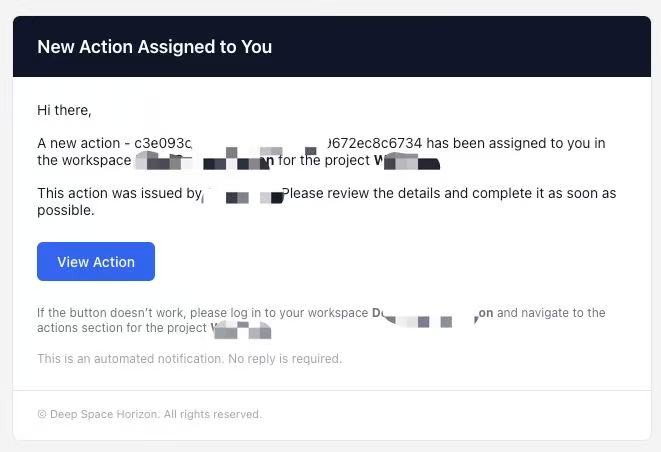
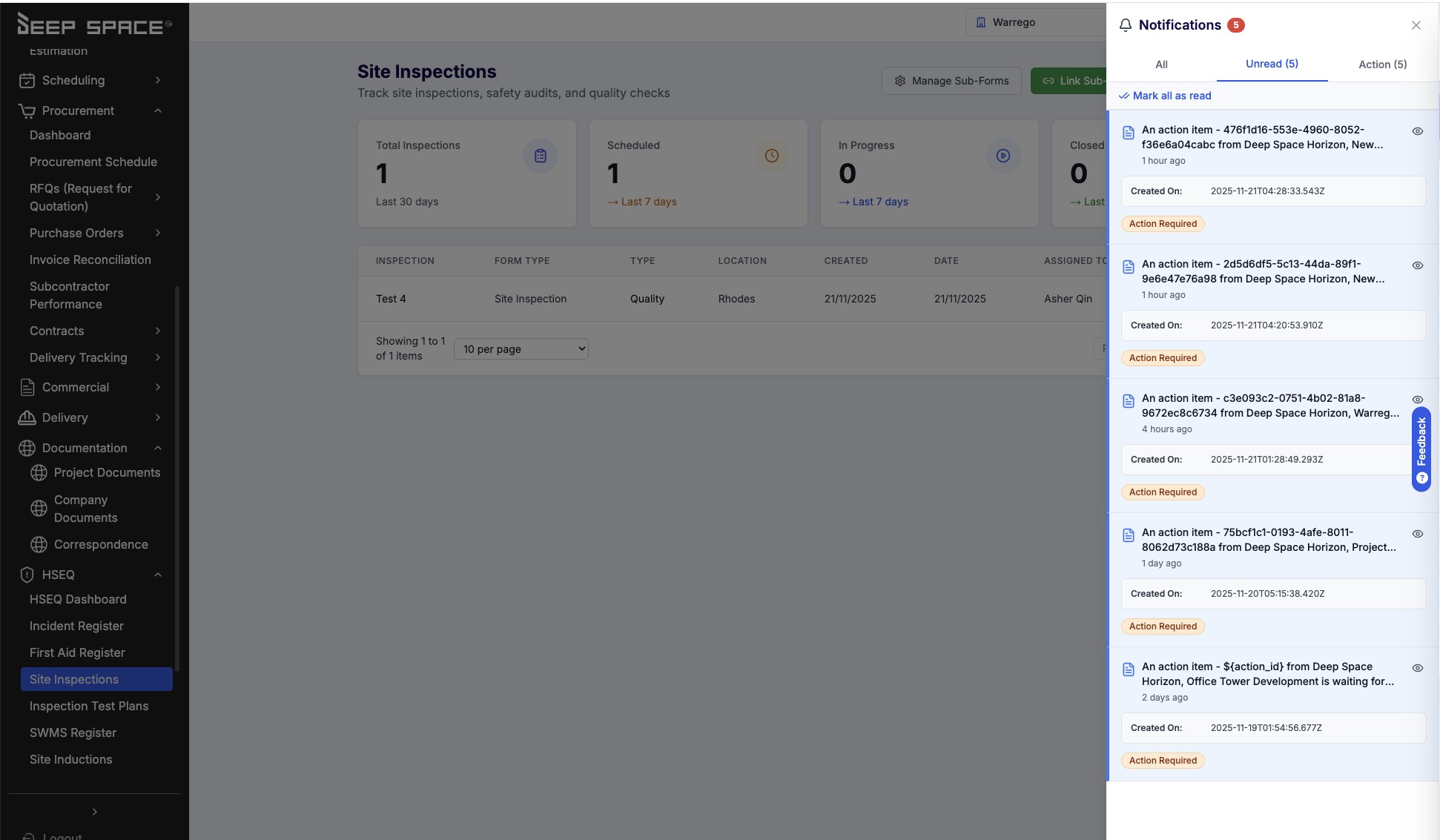
Action Item Notification Workflow Overview The Action Item Notification system ensures assignees are immediately informed when they receive new responsibilities. With dual-channel delivery (email and in-app), notifications guarantee that action items never go unnoticed, helping teams maintain accountability and meet deadlines. How Notifications Work Automatic Delivery Notifications are sent immediately when an action item is created: Someone creates a new action item and assigns it to a team member System captures assignee's email and user ID Notifications are sent instantly via both email and in-app channels Assignee sees notification in-app and receives email No manual steps required - notifications happen automatically every time. Dual-Channel Approach Email Notifications Delivered to assignee's email address HTML-formatted for easy reading Includes full action item details Works even when not logged into Horizon Can forward or share with colleagues In-App Notifications Appear in the notification bell (top right corner) Real-time delivery using live connection Stay in notification history until marked read Includes direct link to action items page Never miss notifications even if email is missed What Recipients Receive In the Email Subject line indicating new assignment Workspace and project context Creator name (who assigned the action) Action item details (description, due date, priority, category) Link to Horizon for quick access In the Notification Bell Notification Preview (in dropdown): Visual icon (blue info icon for new assignments) Title: "New Action Item Assigned" Brief description with key details Timestamp (e.g., "Just now", "5 minutes ago") Unread indicator (red dot) "Mark as Read" button Notification Detail (when clicked): Full notification with complete description All action item details Channel indicators (email + in-app) Read/unread status Timestamp and creator information Direct link to action items page User Experience For Assignees (Action Recipients) Step 1: Receive Notification Notification appears in bell dropdown instantly with red badge showing unread count. Email arrives simultaneously. Step 2: Review Details Click notification bell to see preview, then click notification for full details. Review action description, due date, priority, and who assigned it. Step 3: Take Action Click "Go to Action Items" link to open action items page. Update status to "In Progress" when starting work. Mark as "Completed" when finished. Step 4: Manage Notification Mark as read when acknowledged. Notification stays in history for reference and can be searched anytime. For Action Creators Confirmation: System confirms notification was sent and logs it for audit trail. Follow-up: Check if assignee has read notification. Follow up if no status updates after reasonable time. Notification Management Notification Bell Features Badge Count - Number of unread notifications Dropdown List - Recent notifications preview Quick Actions - Mark as read without opening View All - Link to complete notification history Notification Center Filtering: View all notifications or only unread. Filter by importance level (info, warning, alert). Search by keyword or date range. Pagination: Browse through notification history with 50 notifications per page. Load more as needed. Bulk Actions: Mark all as read, clear old notifications, archive completed items. Read Status Tracking Unread: Show red dot indicator, included in badge count, highlighted in notification list. Read: No indicator shown, removed from badge count, still accessible in history, can be marked unread again. Benefits for Your Team Immediate Awareness Notifications sent instantly upon creation via multiple channels Real-time in-app notifications appear immediately without refresh Email notifications available 24/7 on mobile devices Clear Priority Visual indicators with icons and colors showing importance Priority labels (High/Medium/Low) clearly marked Overdue alerts for late items Due date visibility for planning work Easy Navigation Direct links providing one-click access to action items page Context preserved (workspace and project information) Filtered views showing just assigned items No searching required Audit Trail Complete notification history record Read timestamps showing when assignees acknowledged items Delivery status confirmation Meets compliance and documentation requirements Team Accountability Clear proof of notification delivery Transparent record of who was notified when Can reference when items were assigned Monitor response times for performance tracking Best Practices For Recipients Respond Promptly: Check notifications daily, acknowledge by updating status to "In Progress", set up email filters, enable mobile notifications for urgent projects. Keep Bell Clean: Mark as read once acknowledged, use history to review past assignments, investigate persistent notifications. Take Ownership: Update status regularly, communicate early if deadlines are at risk, complete items promptly, add notes about outcomes. For Creators Assign Thoughtfully: Choose the right person, confirm capacity, set realistic due dates, provide clear descriptions and context. Follow Up Appropriately: Allow reasonable time for notification, check read status before following up, use in-app status updates, communicate directly if needed. Verify Delivery: Check email addresses are correct, confirm Horizon access, test with new team members, monitor for failures. Troubleshooting Not Receiving? Verify email address in profile, check spam folders, ensure logged into Horizon, clear browser cache, or contact administrator. Too Many Notifications? Review assignments, delegate items, use filters for priorities, or adjust email settings. Missing Important Ones? Set up email filters for high priority, check bell more frequently, enable desktop notifications. Getting Started Create your first action and assign it to a colleague Check your notifications by clicking the bell icon Update an action status to practice the workflow Explore notification history to see past notifications Mark notifications read to keep your bell organized Tips for Success Check notifications daily as part of your routine Act quickly by updating status within 24 hours of assignment Keep email clean by marking action notifications read after acknowledging Use email filters and rules for action item notifications Communicate early if you can't complete by due date Stay organized using notification history to track assignments Test the system by assigning yourself an action Ready to Stay Informed? With dual-channel notifications, you'll never miss an action item assignment. Stay on top of your responsibilities and keep your team moving forward.
How do you feel about this update?