
Linked Records
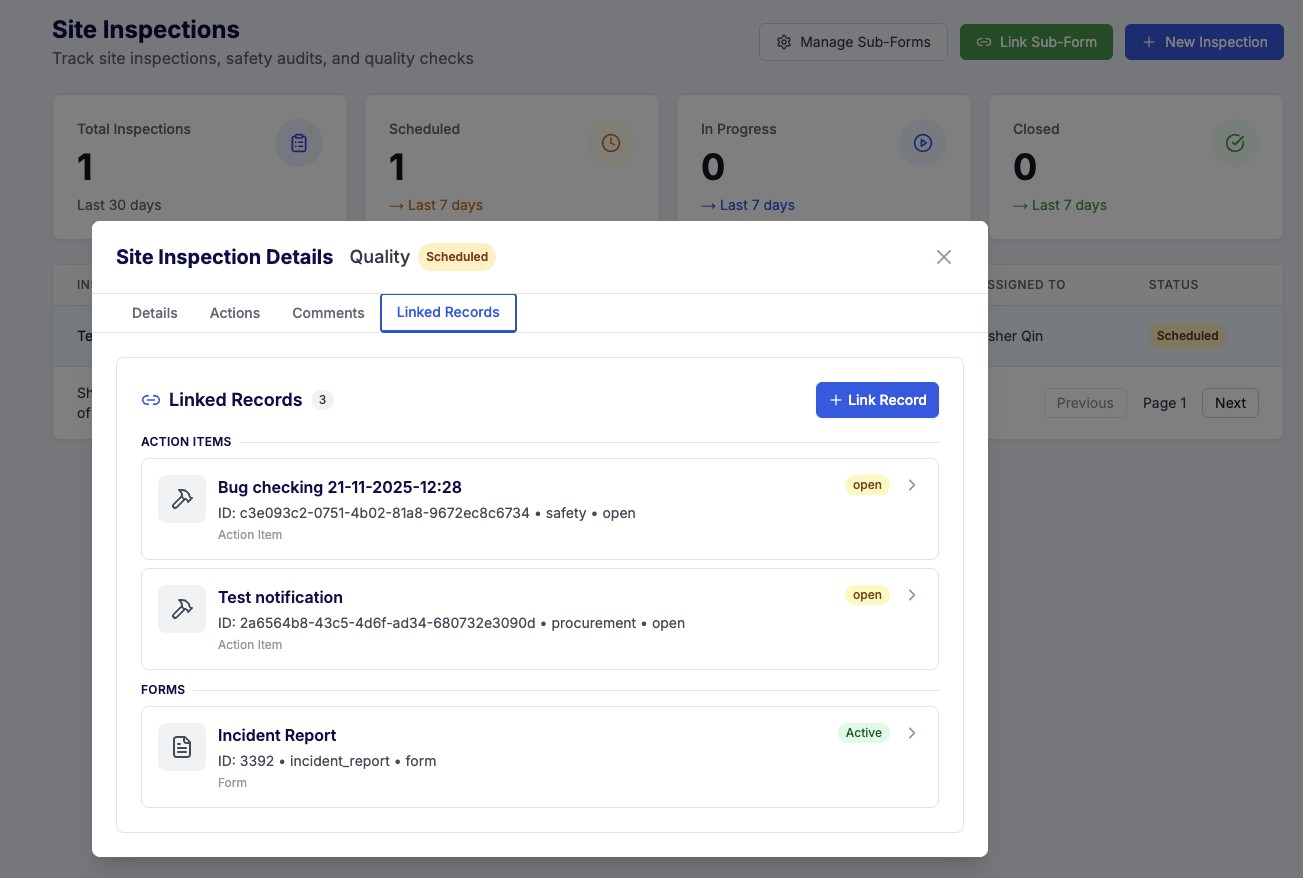
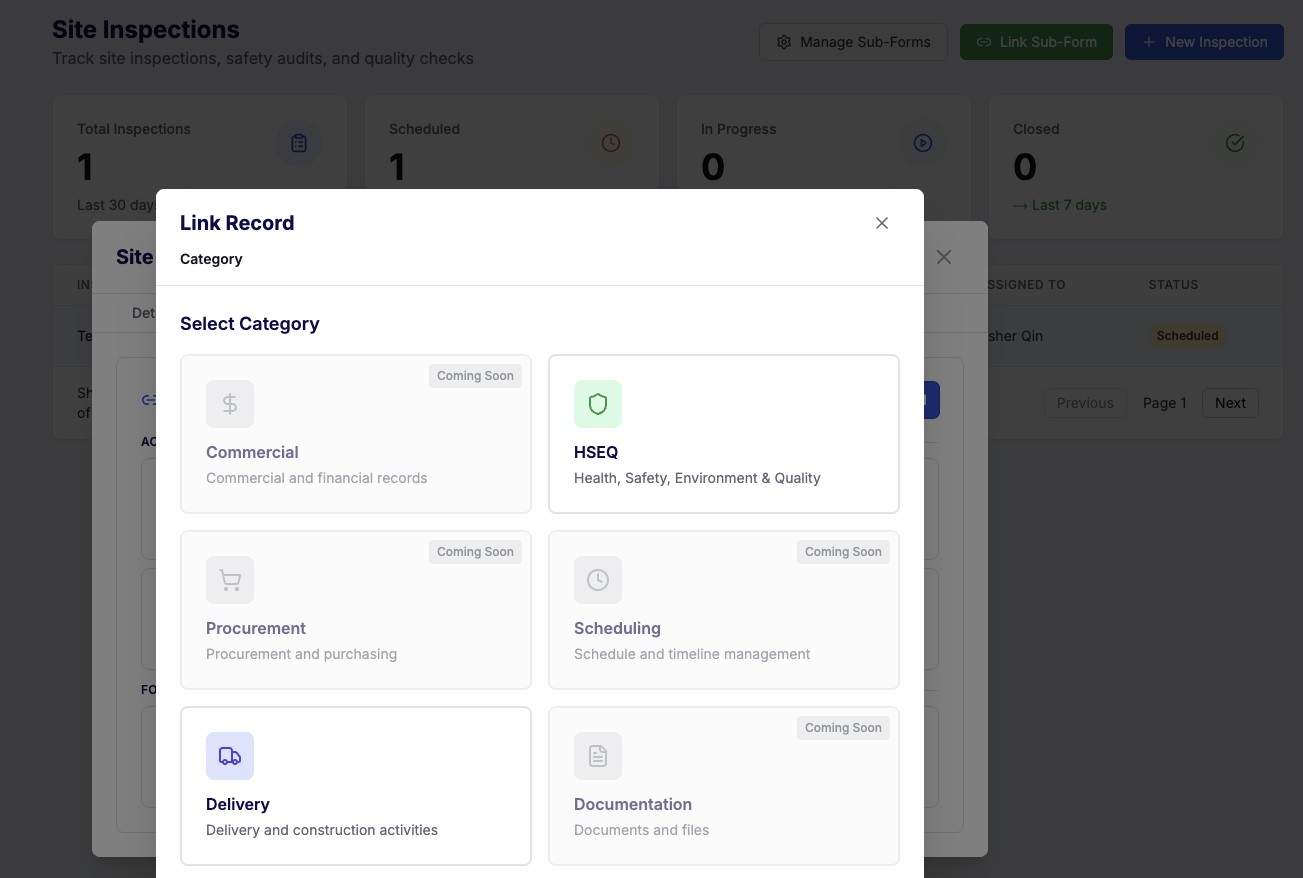
Linked Records Feature Overview The Linked Records feature enables you to create connections between related documents, tasks, and records across your entire project. Build a knowledge graph that captures relationships, dependencies, and context—ensuring complete traceability and making it easy to find related information. Currently, only entities in HSEQ and Delivery action item can link other records. What You Can Link Connect various document and task types across different project areas: HSEQ (Health, Safety, Environment & Quality) Incident Register - Incident reports and safety records Site Inspection - Site inspection checklists and reports Safe Work Method Statement (SWMS) - Work method documentation Site Induction - Site induction and orientation records Permits to Work - Work permits and authorizations Quality Defect - Quality defects and non-conformances Plant Induction - Plant and equipment induction records First Aid Register - First aid treatment records Delivery & Construction Action Items - Tasks and action items Site Diary - Daily site diary entries Submittal - Submittals and shop drawings Meeting Minutes - Meeting minutes and notes Site Instruction - Site instructions and directives Request for Information (RFI) - RFIs and information requests Asset Register - Asset and equipment register Equipment Plant Log - Equipment and plant usage logs Daily Docket - Daily dockets and worksheets Coming Soon Additional categories including Commercial, Procurement, Scheduling, and Documentation will be available soon. How It Works Three-Step Linking Process Creating a link between records is simple and intuitive: Step 1: Select Category Click the "Link Record" button on any supported record Choose from available categories (HSEQ, Delivery, etc.) Categories show clear icons and descriptions "Coming Soon" badges indicate future capabilities Step 2: Select Record Type View all record types within your chosen category Each type displays an icon, color-coded label, and description Visual hover effects help you navigate quickly Step 3: Select and Link Search for existing records by title or details Create new records on-the-fly if needed View record details before linking Click "Link This Record" to create the connection instantly Key Features Smart Search and Discovery Real-time Search - Results update as you type Full-text Search - Search across titles and record details Result Count - See how many matches you found Quick Filters - Narrow results by status, date, or type Rich Record Display Every linked record shows: Title - Clear record name Status Badge - Color-coded status (Open, Closed, In Progress) Subtitle - Additional context information Entity Type Label - Quick identification of record type Icon - Visual indicator for fast recognition Interactive Actions View Details - Click any linked record to see full information Navigate - Jump directly to the complete record view Manage Links - Add or remove connections as needed Refresh - Update the list to see latest links Linked Records Widget The Linked Records widget on any record shows: All linked records grouped by type Count badge showing total links Automatic refresh after creating links Smooth loading animations Helpful empty states when no links exist Real-World Use Cases Example 1: Incident Investigation Scenario: A safety incident occurs on site requiring investigation and corrective action. Workflow: Create an Incident Register entry documenting the event Link to Action Items created to address root causes Link to the Site Inspection that identified the hazard Link to updated SWMS documents Benefit: Complete audit trail from incident through resolution, all connected and easy to navigate. Example 2: RFI Resolution Scenario: Questions arise about material specifications that require clarification. Workflow: Create a Request for Information (RFI) When the answer comes via Site Instruction, link them together Link to the Meeting Minutes where it was discussed Link to the Submittal showing the approved specifications Benefit: Full historical record of how questions were resolved and decisions were made. Example 3: Quality Management Scenario: A defect is found during routine inspection. Workflow: Document findings in a Site Inspection record Create a Quality Defect record and link to the inspection Link Action Items for remediation work Link to follow-up inspections confirming resolution Benefit: Complete traceability from identification through remediation and verification. Example 4: Document Review Scenario: Daily activities reference important project documents. Workflow: Note in Site Diary that a shop drawing was reviewed Link to the specific Submittal document Link to any resulting Action Items or clarifications Link to Meeting Minutes if discussed in coordination meetings Benefit: Complete record of when and how documents were reviewed, by whom, and what actions resulted. Benefits for Your Team Traceability Maintain complete audit trails showing how documents and decisions are connected. Never lose context about why something was done or where it came from. Efficiency Find related information instantly without manual searching through folders or asking colleagues. All connections are just one click away. Compliance Meet regulatory requirements for documentation and evidence trails. Show inspectors and auditors clear relationships between records. Collaboration Help team members understand context and history. New team members can quickly understand the full story by following linked records. Risk Management Identify dependencies and impacts between items. Understand how changes in one area affect related work. Knowledge Capture Build an interconnected knowledge graph of your project. Capture institutional knowledge that might otherwise be lost. Getting Started Open Any Supported Record - Navigate to an Incident, RFI, Action Item, or other supported record type Find the Linked Records Section - Look for the Linked Records widget or tab Click "Link Record" - Start the three-step wizard Follow the Prompts - Select category, type, and specific record Done! - Your link is created and visible on both records Tips for Success Link Early and Often - Create links as work happens, not retroactively Use Descriptive Titles - Make records easy to find when searching Review Links Periodically - Ensure connections remain relevant Train Your Team - Share best practices for when and what to link Build Templates - Establish patterns for common linking scenarios (e.g., always link RFIs to resulting Site Instructions) Best Practices When to Create Links When one document references another When work items share common sources When decisions impact multiple areas When audit trails are required When team members need context What Makes a Good Link Relevant - Links serve a clear purpose Bidirectional - Both records benefit from the connection Current - Links remain valid and useful over time Discoverable - Linked records are easy to find and understand Ready to Connect Your Project? Start building your knowledge graph today with Linked Records. Your team will thank you for the clarity and traceability.
How do you feel about this update?