
Tender Documents
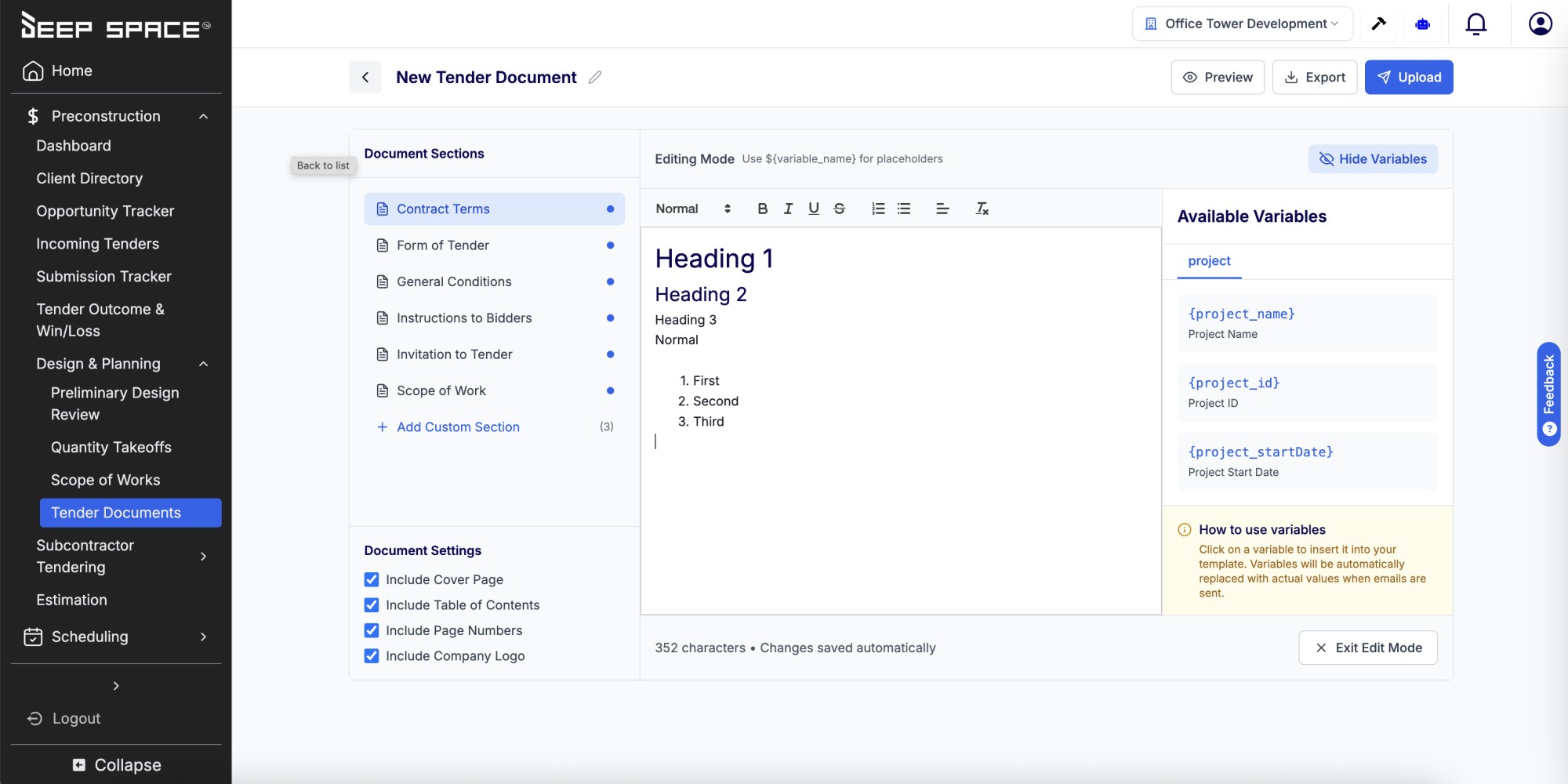
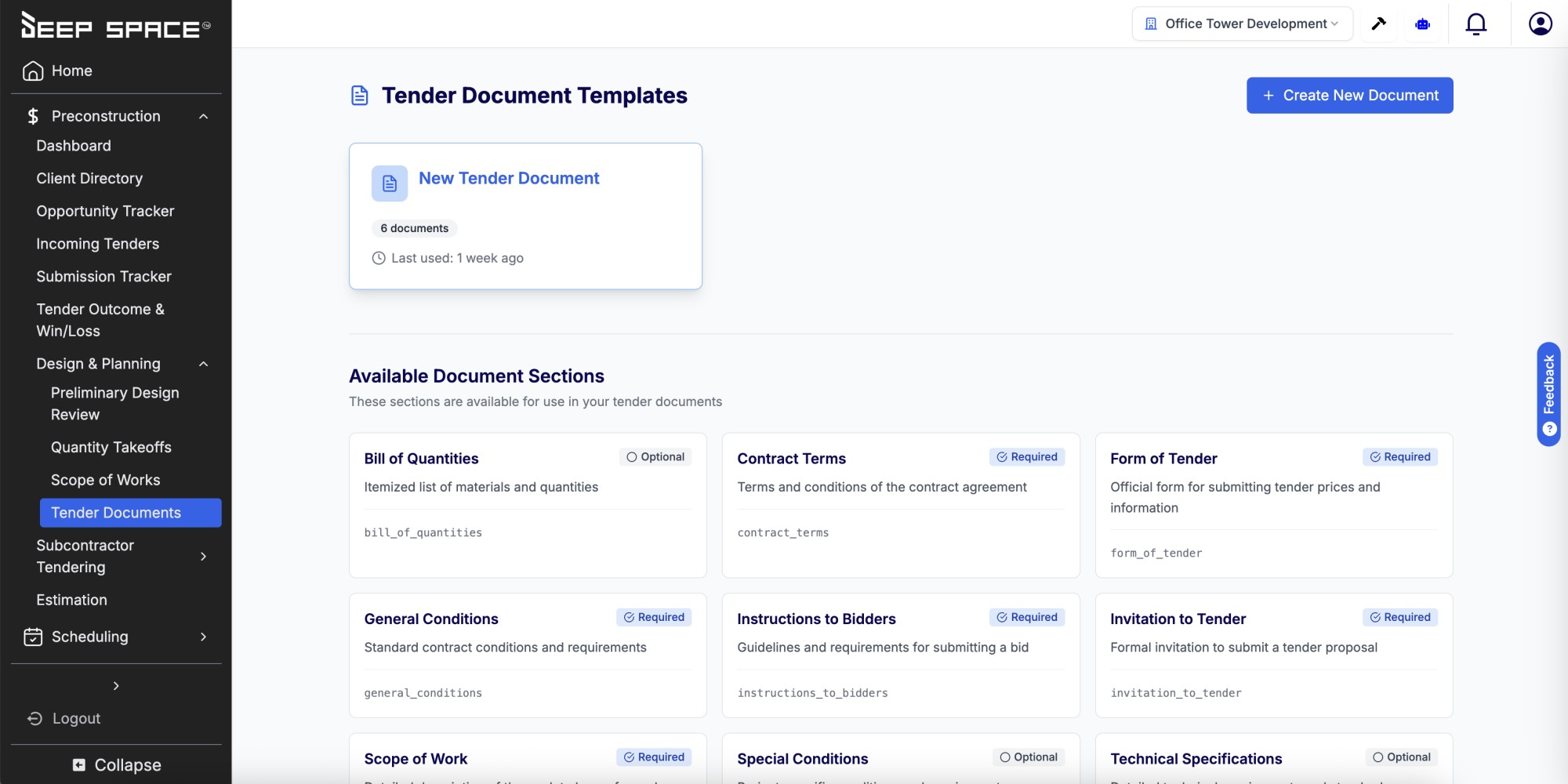
Tender Documents Feature Overview The Tender Documents feature revolutionizes how construction project managers create, customize, and distribute professional tender documents to contractors and suppliers. Instead of starting from scratch with blank templates or word processors, you can now build standardized, professional tender documents with pre-built sections that ensure consistency and completeness across all your bidding processes. This feature saves hours of document preparation time while maintaining the flexibility to customize content for each unique project. Whether you're managing a small renovation or a multi-million dollar construction project, the Tender Documents tool helps you communicate requirements clearly and professionally to potential bidders. What Problem Does This Solve? Construction teams often struggle with: Time-consuming document creation - Manually assembling tender documents from scratch for every project Inconsistent formatting - Different team members creating documents with varying structures and quality Missing critical information - Forgetting essential sections or requirements in tender packages Distribution challenges - Managing email lists and ensuring all contractors receive identical information Version control issues - Losing track of which version was sent to which contractor The Tender Documents feature addresses all these pain points by providing a structured, efficient workflow from creation to distribution. Key Capabilities Smart Document Creation Create professional tender documents in minutes, not hours. The system guides you through the process with: Pre-built section library containing industry-standard tender document components Automatic structure ensuring all 6 required sections are included Flexible customization allowing you to add 3 optional sections based on project needs Template reusability so you can build on previous documents rather than starting over Professional Content Editing Compose compelling, well-formatted tender content with a powerful editor that includes: Rich text formatting - Headers, bold, italic, underline, lists, and text alignment Visual editing experience - See exactly how your content will appear to recipients Preview mode - Review the final document before sending Auto-save functionality - Never lose your work while editing Section-by-section editing - Focus on one component at a time for better organization Dynamic Personalization Make every tender document feel custom-tailored with the variable system: Smart placeholders - Insert variables like company name, recipient name, project details, and budget Automatic substitution - Variables are replaced with actual values when documents are sent Reusable content - Write content once, personalize it automatically for each recipient Professional appearance - Every contractor receives a document that feels specifically prepared for them Examples of variables you can use: ${recipient_name} - Personalizes the greeting ${company_name} - References the contractor's business ${project_name} - Specifies which project the tender is for ${budget} - Includes financial information ${deadline} - Sets clear submission dates Document Formatting Options Enhance the professional appearance of your tender documents with: Cover Page - Create a polished first impression with a professional cover Table of Contents - Help contractors navigate multi-section documents easily Page Numbers - Essential for referencing specific sections during discussions Company Logo - Brand your documents with your organization's identity Efficient Distribution Management Send tender documents to multiple contractors simultaneously with: Recipient management - Build and maintain your contractor database Email integration - Connect with Gmail or Outlook for seamless sending Batch distribution - Select multiple recipients and send with one click Custom messaging - Add project-specific context in the email body Duplicate prevention - System ensures you don't accidentally add the same contractor twice Document Sections Library Required Sections (Included Automatically) Every tender document must include these six essential sections: Invitation to Tender The opening letter that formally invites contractors to submit bids for your project. This section sets the professional tone and provides the first overview of the opportunity. Typically includes welcoming language, brief project description, and encouragement to review the full package. Instructions to Bidders Detailed guidelines explaining how contractors should prepare and submit their bids. This critical section covers submission formats, required documentation, deadline information, contact persons for questions, and any specific requirements for bid formatting. Clear instructions here reduce confusion and ensure you receive consistent, comparable bids. Form of Tender The official submission template that contractors must complete when submitting their bid. This standardized form ensures you collect the same information from every bidder, making comparison and evaluation straightforward. Includes fields for pricing, timeline commitments, and contractor qualifications. Scope of Work Comprehensive description of the project requirements, deliverables, and expectations. This is often the longest and most detailed section, outlining exactly what work needs to be performed, what materials or standards must be used, and what the final deliverable should look like. The more detailed this section, the more accurate the bids you'll receive. Contract Terms Legal and business terms that will govern the relationship between your organization and the selected contractor. Covers payment terms, liability, insurance requirements, dispute resolution, termination conditions, and other contractual obligations. This section protects both parties and sets clear expectations. General Conditions Standard contract conditions and requirements that apply to all projects within your organization. These might include workplace safety requirements, environmental compliance standards, quality control processes, administrative procedures, and general contractual obligations. Once written, this section can be reused across multiple tender documents, ensuring consistency in your organizational standards. Optional Sections (Add As Needed) Customize your tender documents by including these additional sections when relevant: Bill of Quantities Detailed itemized breakdown of materials, labor, and costs for projects where precise quantity takeoffs are required. This section is particularly valuable for construction projects where you want contractors to bid on specific line items rather than providing a single lump sum. Allows for more transparent pricing and easier comparison between bids. Special Conditions Project-specific terms that don't apply to your standard operations. Use this section for unique requirements like restricted access times, security clearances, special equipment needs, or unusual site conditions. This keeps special requirements clearly separated from your standard General Conditions. Technical Specifications In-depth technical requirements including material specifications, construction methods, quality standards, and performance criteria. Essential for projects with specialized technical requirements like structural engineering specifications, electrical systems, HVAC requirements, or finishing standards. Using the Document Editor Two-Panel Interface The editor uses an intuitive split-screen design: Left Panel - Section Navigator See all sections in your document at a glance Blue dot indicators show which sections have content or are required Click any section name to jump directly to it for editing "Add Custom Section" button lets you include optional sections Visual organization keeps your document structure clear Right Panel - Content Editor Switch between Preview Mode (read-only view) and Edit Mode (content creation) Rich text toolbar appears in Edit Mode for formatting Character count helps you track content length Full-width editing space for comfortable writing Editing Workflow Select a section from the left sidebar - it highlights to show it's active Click "Edit" in the right panel to begin composing content Use the formatting toolbar to structure your text professionally Insert variables from the side panel for dynamic personalization Switch sections anytime - your changes save automatically when you move to another section Click "Preview" to see the final formatted appearance Save the document with a descriptive title when complete Formatting Toolbar Features Headers - Choose H1, H2, or H3 for section titles and subheadings Text Styling - Apply bold for emphasis, italic for definitions, underline for importance, or strikethrough for editing Lists - Create numbered lists for sequential steps or bullet points for unordered items Alignment - Left-align for body text, center for titles, or right-align for dates Clear Formatting - Remove all formatting to start fresh Tips for Effective Content Be specific - Vague requirements lead to vague bids Use clear language - Avoid jargon that might confuse some contractors Include examples - When possible, show what you mean rather than just describing it Set expectations - Be explicit about timelines, quality standards, and deliverables Review carefully - Preview mode helps catch errors before distribution Document Distribution Setting Up Email Integration Before you can send tender documents, connect your email account: Navigate to your account settings Select email integration options Choose Gmail or Outlook Authorize the connection Return to Tender Documents - you're ready to distribute If you see a warning banner about email configuration, complete these steps first. Managing Recipients Build your contractor database directly within the distribution section: Click "Add Recipient" to open the recipient form Enter contractor name - Full name or company name Enter email address - Must be valid format (checked automatically) Save recipient - They're added to your list Repeat for all contractors you want to include The system prevents duplicate email addresses, so you can't accidentally add the same contractor twice. Sending Tender Documents Once you have recipients and a completed document: Select recipients - Check the box next to each contractor who should receive this tender Choose distribution method - Email is the primary option Write email subject - Something clear like "Tender Invitation: Downtown Office Renovation" Compose email message - Add context, highlight deadlines, or include submission instructions Review your selections - Double-check recipients and content Click "Send" - Documents are distributed immediately as PDF attachments The system automatically formats your email message professionally and includes the tender document as a standardized PDF attachment named "Tender_Document.pdf". Distribution Best Practices Send to multiple contractors - Competition leads to better pricing Personalize the email message - Reference the specific project and any unique considerations Set clear deadlines - Include submission dates in both the email and the tender document Provide contact information - Let contractors know who to reach out to with questions Follow up - Track who has opened and reviewed your tender (if your email system supports read receipts) Real-World Example: Creating a Tender Document Let's walk through creating a tender document for a commercial office renovation project: Step 1: Create New Document You click "Create New Document" from the template library. The system automatically includes the six required sections: Invitation to Tender, Instructions to Bidders, Form of Tender, Scope of Work, Contract Terms, and General Conditions. Step 2: Add Optional Sections Since this is a renovation with specific material requirements, you add two optional sections: Bill of Quantities (for itemized pricing) and Technical Specifications (for material standards). Step 3: Compose Invitation to Tender You write: "Dear ${recipientname}, We are pleased to invite ${companyname} to submit a tender for the renovation of our downtown office space at 123 Business Plaza. This exciting project involves modernizing 5,000 square feet of workspace with an estimated budget of ${budget}." Step 4: Detail the Scope of Work You outline all renovation requirements: demolition work, new partition walls, electrical upgrades, HVAC modifications, flooring replacement, paint finishes, and furniture installation. You include completion timeline (12 weeks) and milestone dates. Step 5: Specify Technical Requirements In the Technical Specifications section, you list required material brands, quality grades, and performance standards. For example: "All electrical work must meet National Electrical Code 2023 standards" and "Flooring must be commercial-grade luxury vinyl plank with minimum 20 mil wear layer." Step 6: Configure Document Settings You enable Cover Page, Table of Contents, and Page Numbers. You include your Company Logo for professional branding. Step 7: Save the Document You give it a clear title: "Q1 2025 - Downtown Office Renovation Tender" and click Save. Step 8: Distribute to Contractors You add five local contractors to your recipient list, select all five, and compose an email: "Subject: Tender Invitation - Downtown Office Renovation Project. Message: Please find attached our formal tender invitation for the downtown office renovation project. Submissions are due by January 31st, 2025. Site visits can be scheduled through our project manager. We look forward to your proposal." You click Send, and all five contractors receive the professionally formatted tender document within seconds. Best Practices & Tips For Document Creation Start with similar past projects - Edit existing tender documents rather than creating from scratch Write once, reuse often - General Conditions and Contract Terms can be standardized across all projects Be thorough in Scope of Work - The more detail you provide upfront, the fewer questions you'll receive from contractors Use variables strategically - Any information that changes per-recipient should be a variable (names, companies, project details) For Content Quality Have multiple team members review - Fresh eyes catch missing details Include visual references - When possible, reference drawings, photos, or specifications documents Set realistic timelines - Give contractors enough time to prepare quality bids Specify evaluation criteria - Let bidders know whether you're prioritizing price, experience, timeline, or a combination For Distribution Maintain a vetted contractor list - Build relationships with reliable contractors over time Send simultaneously - All contractors should receive tenders at the same time for fairness Document everything - Keep records of who received which version and when Be responsive - Answer contractor questions promptly during the bidding period Getting Started Ready to create your first tender document? Here's your quickstart: Navigate to the Tender Documents section in the Design Planning module Click "Create New Document" Name your project Start with the Invitation to Tender section Work through each section systematically Preview before saving Set up your recipients Distribute with confidence The Tender Documents feature transforms a time-consuming, error-prone process into a streamlined, professional workflow. Your contractors will appreciate the clarity and consistency, while your team saves hours on every project tender.
How do you feel about this update?